Rocketlane MCP (Model Context Protocol) lets your AI assistant securely access Rocketlane so you can search projects, create and update tasks, and stay on top of delivery work without switching tools.
Rocketlane MCP connects to your AI tool through an MCP server URL and uses OAuth for authentication.
In this article
When to use
Use Rocketlane MCP when you want to:
- Create, update, and search tasks across projects.
- Summarize project status and flag overdue or blocked work.
- Turn customer inputs, such as handoff notes, discovery context, or SOWs, into a structured project plan.
- Log or update time entries from your AI assistant, where supported in your setup.
- Search users, projects, and fields so actions can be performed with the correct values.
Prerequisites
Before connecting Rocketlane MCP, ensure that:
- You have a Rocketlane user account.
- You have access to the projects you want to work with.
- Your Rocketlane permissions allow the actions you want to perform, such as creating tasks, updating tasks, or creating time entries.
- Your AI tool supports MCP and OAuth, or supports adding MCP servers.
Connect Rocketlane MCP to Claude Code
Follow these steps to connect Rocketlane MCP to Claude Code.
Prerequisites for Claude Code
Before registering the MCP server, ensure that Claude CLI is installed.
To check whether Claude CLI is installed, run:
claude --versionIf you see command not found: claude, follow the installation steps below.
Install Claude CLI
Step 1: Install Node.js, if not already installed
On macOS, using Homebrew:
brew install nodeOn Windows:
- Download Node.js from nodejs.org.
- Run the installer.
On Linux, Ubuntu or Debian:
curl -fsSL https://deb.nodesource.com/setup_lts.x | sudo -E bash - sudo apt-get install -y nodejsStep 2: Install Claude CLI globally
npm install -g @anthropic-ai/claude-cliStep 3: Verify installation
claude --versionYou should see the Claude CLI version number.
Register the MCP server
Run this command in your terminal:
claude mcp add --transport http rocketlane https://rocket-mcp.rl-platforms.rocketlane.com/mcp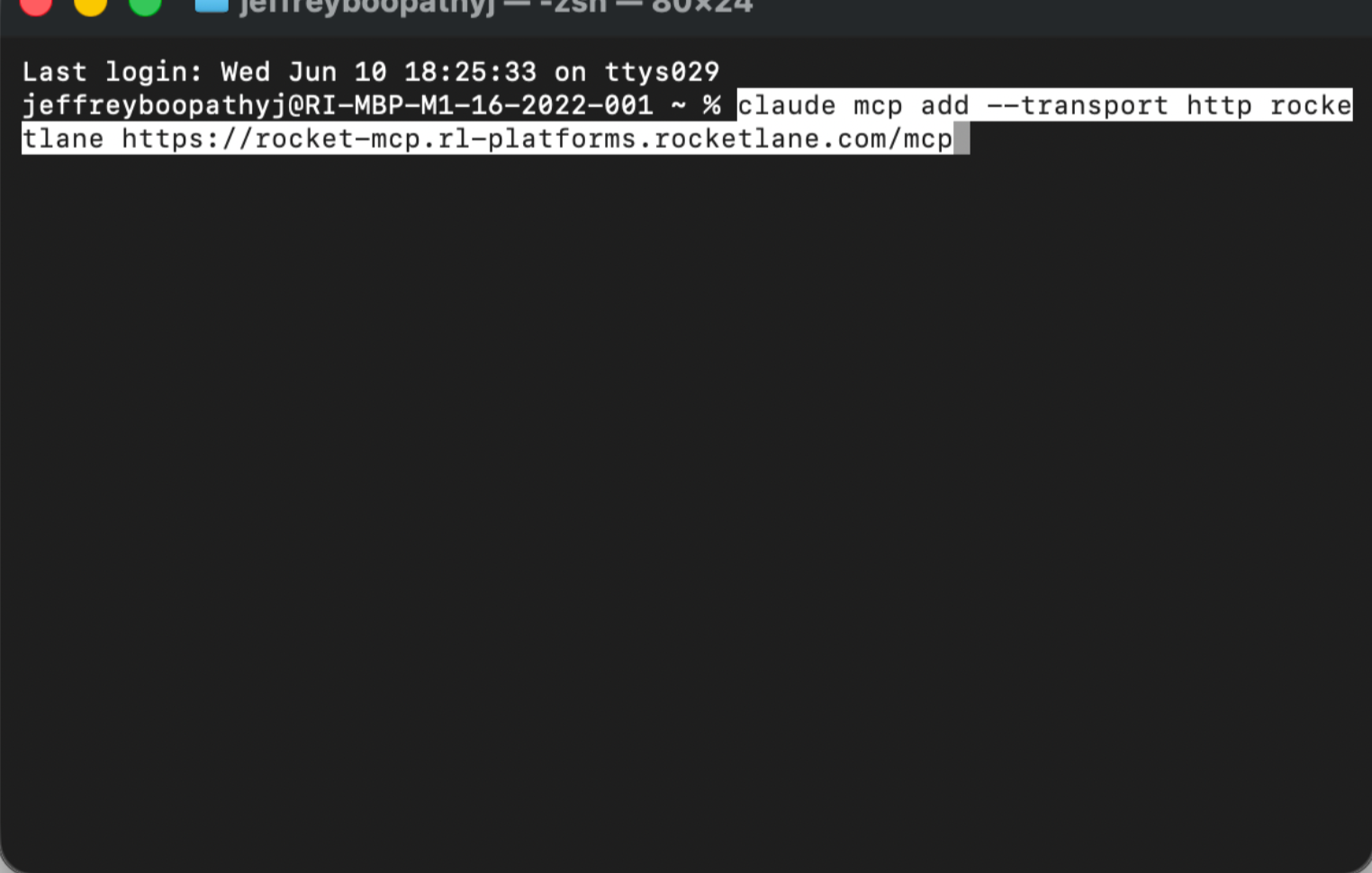
Authorize in Claude Code
- Start a Claude Code session.
- Enter
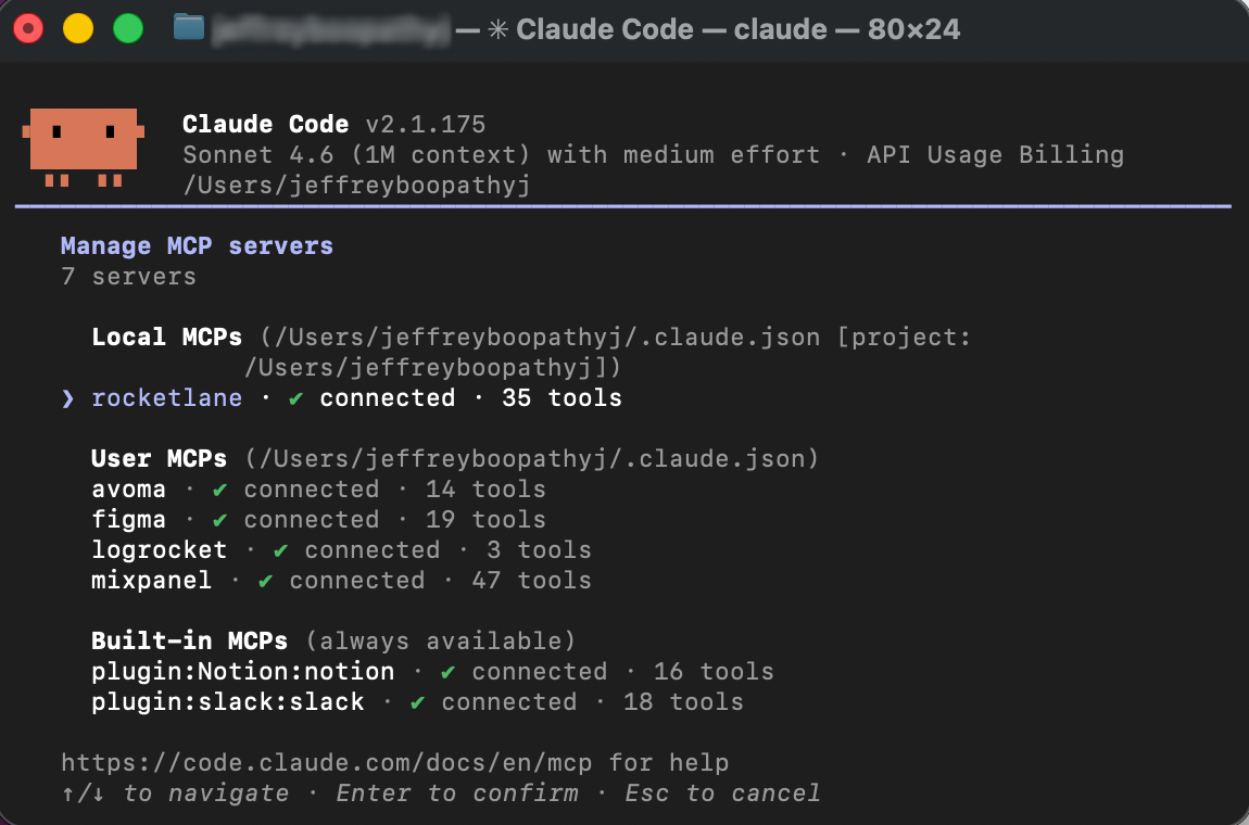
/mcp. - Select Rocketlane from the MCP list.
- Select Authorize and complete OAuth.
After authorization, Rocketlane MCP tools are available in the session.