This guide shows how to let customers schedule time with their assigned onboarding manager directly inside each Rocketlane project. Instead of sharing calendar links manually, you can add each manager’s Calendly link to a shared space and use dynamic conditions to show the right link for each project.
In this article
Build a Calendly links template
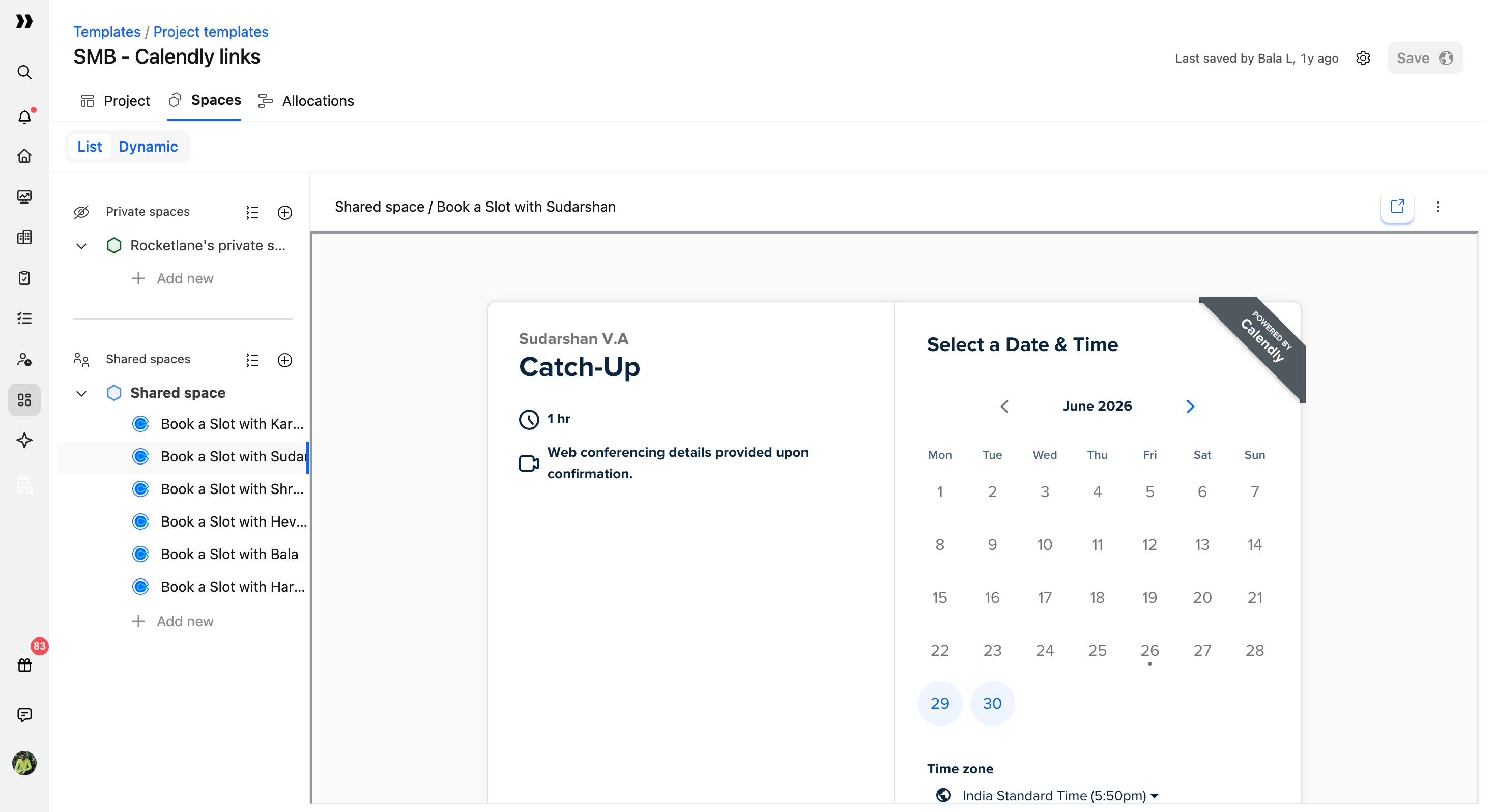
Create a project template that contains all onboarding managers’ Calendly links as embedded shared spaces.
- Create a new project template, for example Calendly Links - Onboarding Managers.
- Leave Tasks and Phases empty. This template only needs the Shared Spaces section.
- In the Spaces panel, go to Shared Spaces and click Add New > Embed URL.
- Paste the Calendly URL of the first onboarding manager and name the space, for example Calendly - Alex K..
- Repeat the same steps for every onboarding manager until all Calendly links are embedded.
Add dynamic conditions
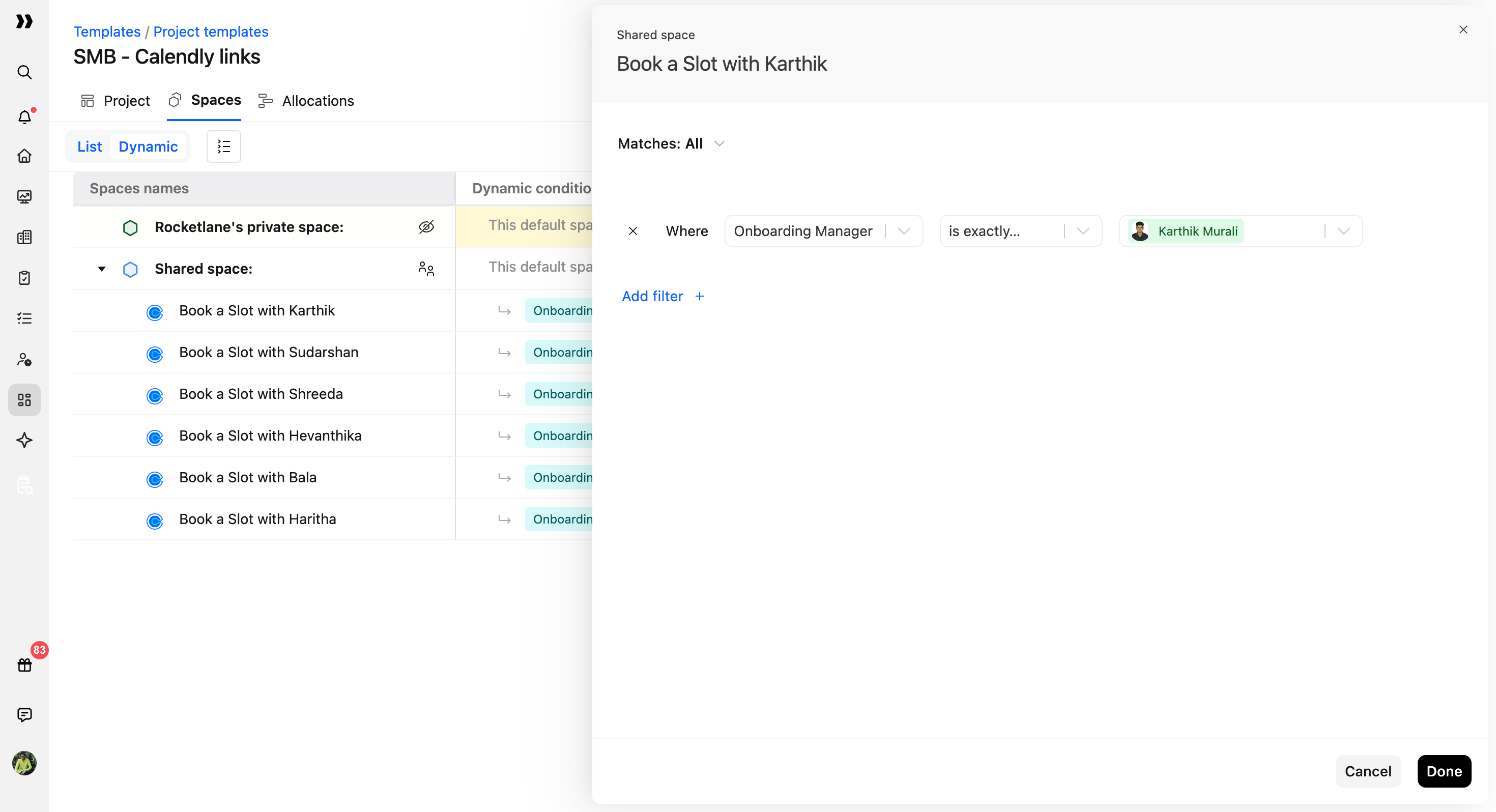
Add a dynamic condition to each Calendly shared space so that only the relevant manager’s link appears in a project.
- Open the first Calendly space you added.
- Click Dynamic > Add Condition.
- Set the condition as Where Onboarding Manager is exactly [manager name]. Use the exact name stored in your Onboarding Manager field.
- Save the condition.
- Repeat this for each Calendly space, using the correct onboarding manager name for each condition.
Once this is set up, only the Calendly link that matches the project’s Onboarding Manager field will be shown for that project.
Insert the template when a manager is assigned
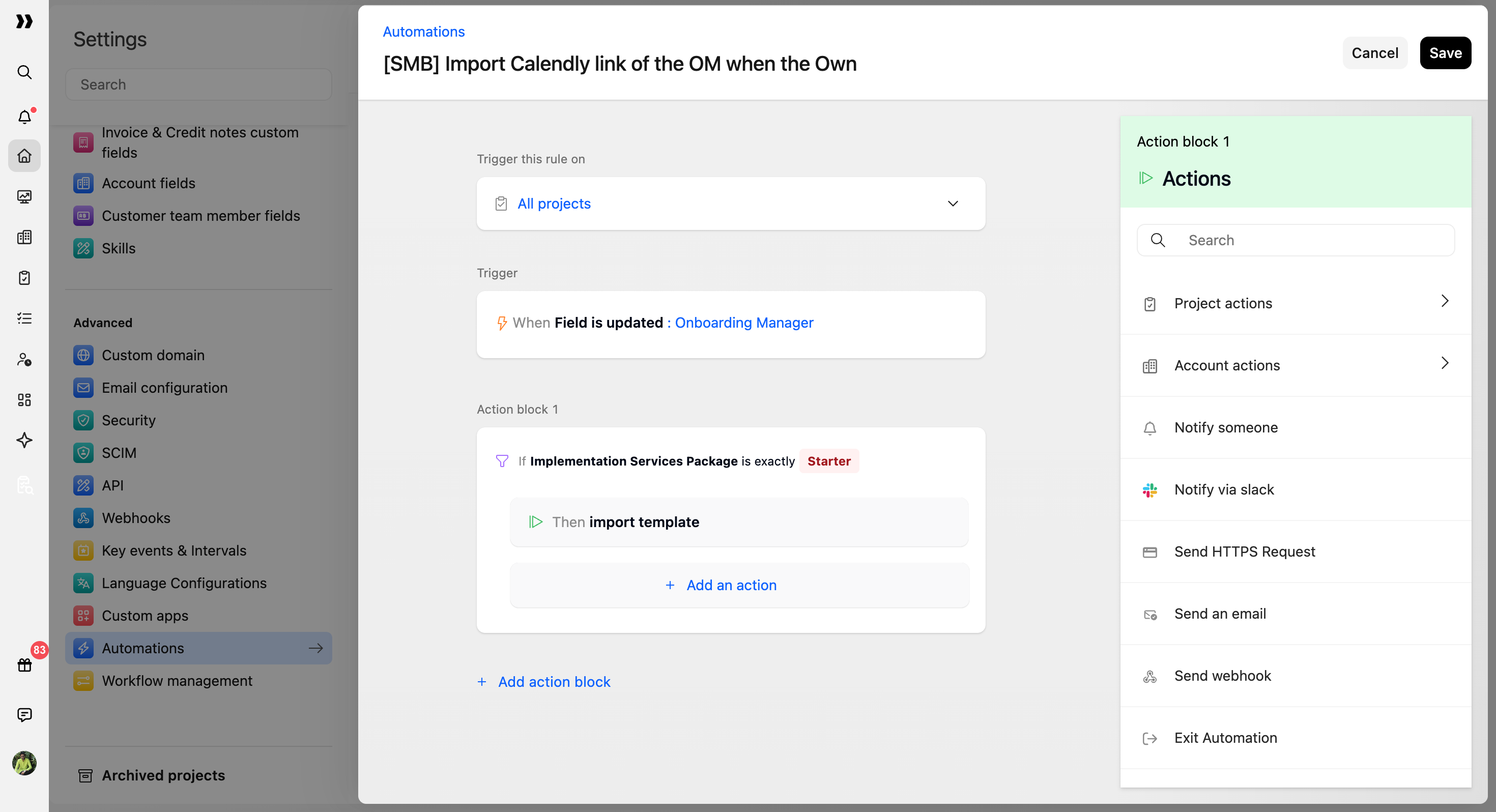
Create an automation that imports the Calendly links template whenever the Onboarding Manager field is set or updated in a project.
- Navigate to Settings > Automations > New Automation.
- Set the automation to run on All projects.
- Set the trigger as When field is updated > Onboarding Manager.
- Set the action as Import template and select the Calendly Links - Onboarding Managers template you created.
- Save the automation.
Now, whenever the Onboarding Manager field is set or updated in a project, Rocketlane automatically imports the template that contains all Calendly embeds. Because each shared space has a dynamic condition, the customer only sees their assigned onboarding manager’s scheduling link.