In this article
- Use rich text in multi-line text columns
- Navigate cells using the keyboard
- Add a new row below the current cell
- Edit cells faster
- Toggle boolean cells with Enter
- Work faster with dropdowns and rating pickers
- Switch between sheet tabs
- Add multiple rows at once
- Open cell comments quickly
- Attach files using the keyboard
- View column descriptions
- View the shortcut cheatsheet
- Adjust row height and wrap text
- Pin columns to the left
- Recommended workflow
Rocketlane Sheets includes shortcuts and editing options that help you move through sheets, update cells, add rows, review comments, and work with attachments faster.
Use these options when you want to edit sheets with fewer clicks and move between cells, tabs, and common actions without constantly switching between the keyboard and mouse.
Use rich text in multi-line text columns
Multi-line text columns use a rich-text editor, giving you more flexibility when adding structured information inside a cell.
You can use rich text for content such as:
- Notes
- Summaries
- Instructions
- Meeting takeaways
- Implementation details
- Customer-specific context
Navigate cells using the keyboard
Use Tab and Shift + Tab to move between cells in the same row.
| Shortcut | Action |
|---|---|
| Tab | Moves focus to the next cell on the right. |
| Shift + Tab | Moves focus to the previous cell on the left. |
Add a new row below the current cell
Use Shift + Enter to insert a new row below the focused cell.
This is useful when entering several rows of information and you want to keep adding rows without leaving the keyboard.
| Shortcut | Action |
|---|---|
| Shift + Enter | Inserts a new row below the focused cell. |
Edit cells faster
Use keyboard actions to cancel an edit or continue editing cells without using the mouse.
| Shortcut | Action |
|---|---|
| Escape while editing | Cancels the edit and reverts the changes. |
| Double Enter | Moves into edit mode on the next cell. |
Use Escape when you start editing a cell but want to discard the change.
Use Double Enter when moving down a column and you want to continue editing the next cell.
Toggle boolean cells with Enter
When a boolean cell is focused, press Enter to toggle its value.
This applies to boolean-style columns such as:
- Yes / No
- True / False
- Checked / Unchecked
Use this when you want to update checkbox-style values quickly from the keyboard.
Work faster with dropdowns and rating pickers
Dropdowns and rating pickers can be opened with a single click when the cell is already selected.
When working with dropdown selections:
- If the cell is already selected, click once to open the picker. Otherwise, the first click selects the cell and the next click opens it.
- Make the required selection.
- Select Done to confirm the selection.
- Use Tab to navigate within the dropdown.
This helps reduce clicks when updating select fields, multi-select fields, ratings, and similar picker-based columns.
Switch between sheet tabs
Use keyboard shortcuts to move between sheet tabs without clicking each tab manually.
| Shortcut | Action |
|---|---|
| Option + Left Arrow | Moves to the previous sheet tab. |
| Option + Right Arrow | Moves to the next sheet tab. |
Tab switching wraps through Overview, so you can continue moving through tabs without stopping at the first or last tab.
Add multiple rows at once
You can add rows in bulk instead of creating them one at a time. Up to 100 rows can be added in a single action.
This is useful when preparing a sheet for:
- Task lists
- Requirements
- Risk registers
- Data collection
- Customer inputs
- Internal checklists
Open cell comments quickly
Use shortcuts to open comments for the focused cell or jump to the comments panel.
| Shortcut | Action |
|---|---|
| Cmd + Option + M on Mac | Opens the comment popup for the focused cell. |
| Ctrl + Alt + M on Windows/Linux | Opens the comment popup for the focused cell. |
| Cmd + Option + Shift + A on Mac | Opens the comments side panel. |
Use cell comments when you need to discuss a specific value, clarify an entry, or leave context for another team member.
Attach files using the keyboard
When an attachment cell or attachment action is focused, you can use the keyboard to open or close the attachment flow.
| Key | Action |
|---|---|
| Enter | Opens the attachment flow so you can attach files. |
| Escape | Closes the attachment window and returns focus to the underlying cell. |
Use these shortcuts when you want to add files to sheet cells without switching to mouse-based navigation.
View column descriptions
Column descriptions are available as hover tooltips in Sheets.
Hover over a column description to understand what information the column is intended to capture. This is especially useful for customer-facing sheets where customers may need guidance on what information to enter.
View the shortcut cheatsheet
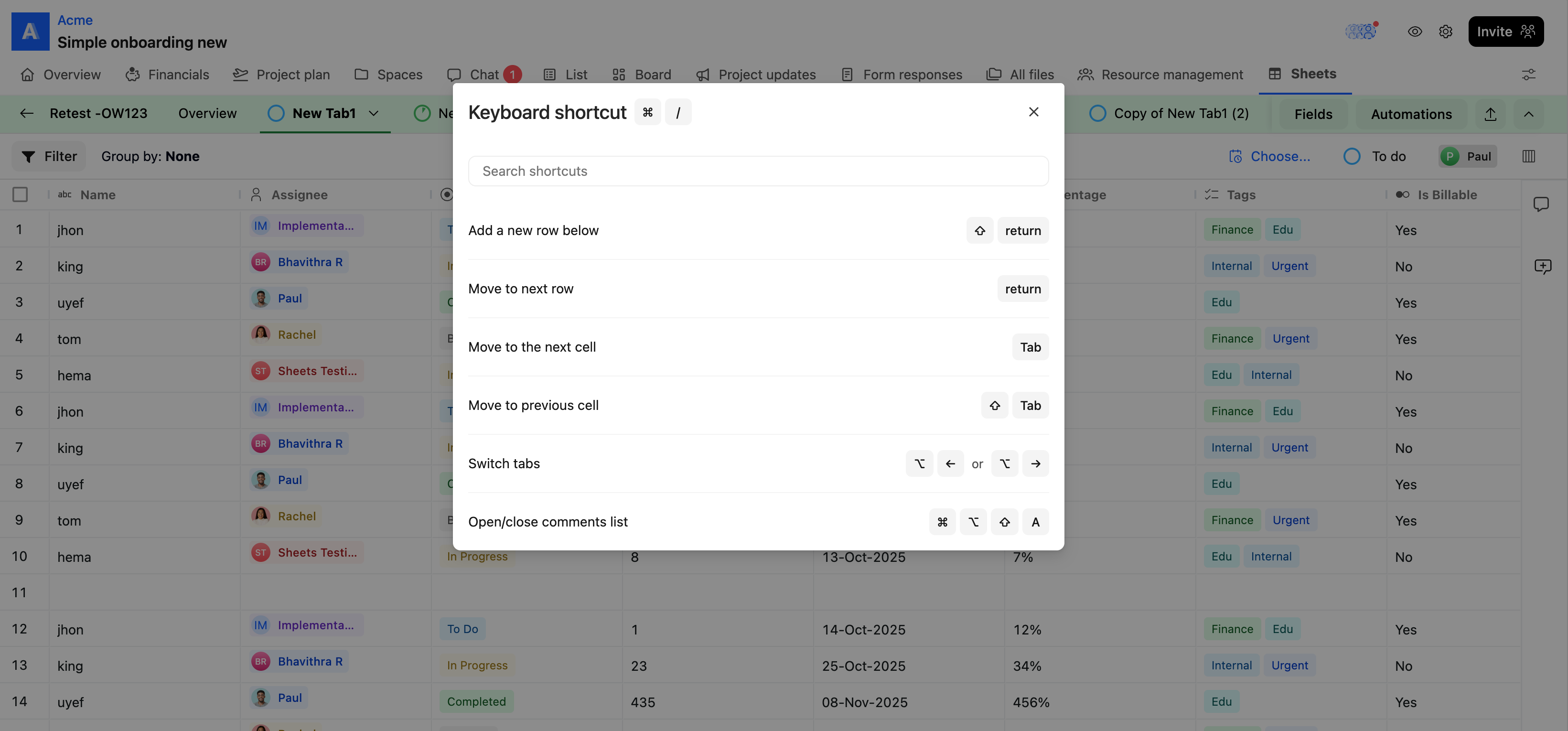
Open the shortcut cheatsheet when you want to quickly review the keyboard shortcuts available in Sheets.
| Shortcut | Action |
|---|---|
| Cmd + / | Opens the shortcut window for Sheets. |
Adjust row height and wrap text
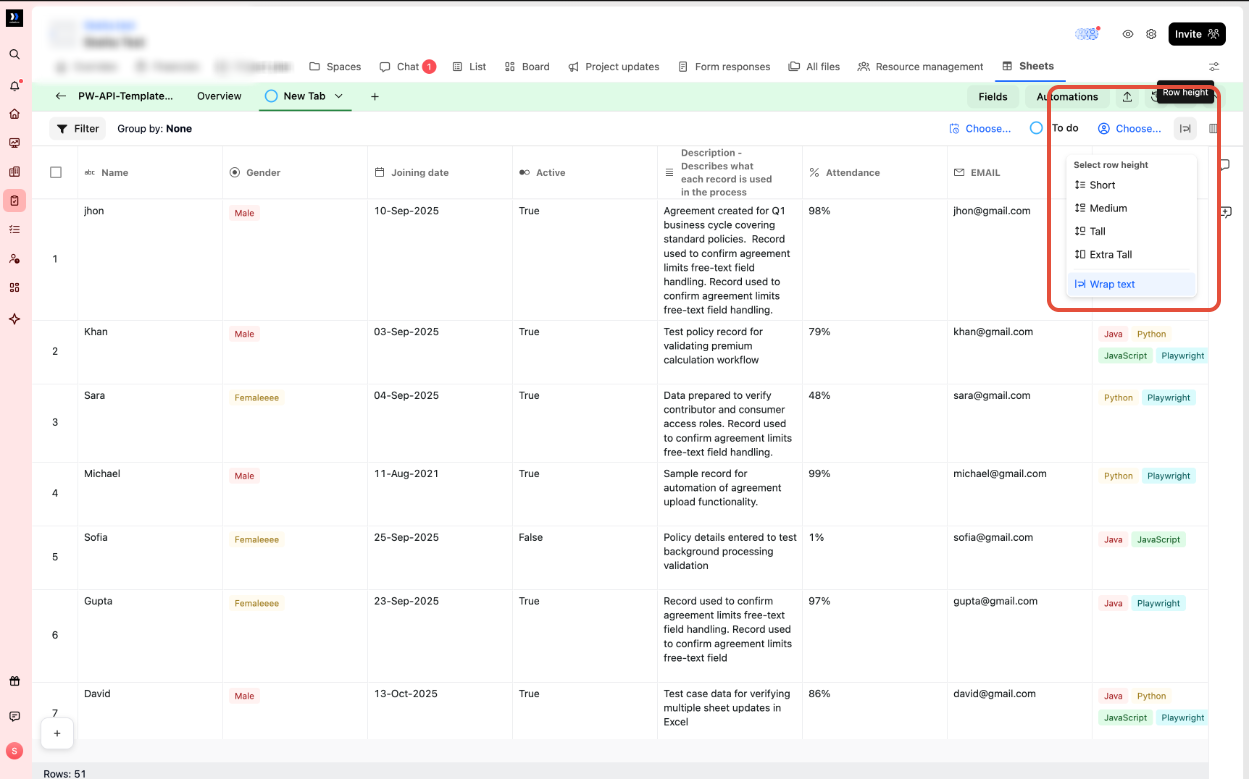
Use Row height in the toolbar to control how much of each cell's content is visible.
| Option | What it does |
|---|---|
| Short | Keeps every row on a single line. Longer content is cut off. This is the default. |
| Medium | Gives every row the same height, with content wrapping onto a small number of lines before being cut off. |
| Tall | Gives every row the same height, with room for more lines. |
| Extra Tall | Gives every row the same height, with room for the most lines. |
| Wrap text | Sizes each row based on its content so the full value remains visible. |
The first four options apply a fixed height to every row in the tab. Wrap text works differently. Each row adjusts to its own content, so a short value remains compact while a longer value expands across additional lines.
To change the row height:
- Open a project sheet or a sheet template.
- Select Row height in the toolbar.
- Choose a fixed height or select Wrap text.
What Wrap text changes
- Long text wraps onto as many lines as required instead of being cut off.
- Each row is sized according to its own content, so row heights do not need to remain uniform.
- Long column names wrap so headers remain readable.
- While you edit a cell, the row grows as you type so the full value remains visible.
Use Wrap text for sheets containing longer free-text values such as notes, descriptions, requirements, or bug reproduction steps, where you want to read the full entry without opening each cell.
Pin columns to the left
In wide sheets, key columns such as a name or ID scroll out of view as you move right, making it hard to tell which row you are editing. Pin those columns so they stay visible on the left while you scroll.
To pin a column:
- Open a project sheet or a sheet template.
- Right-click the column header.
- Select Pin column to left.
To unpin a column:
- Right-click the pinned column header.
- Select Unpin column.
| Behavior | Details |
|---|---|
| Limit | Up to 6 columns per tab. When 6 are pinned, Pin column to left is unavailable and shows You can pin a maximum of 6 columns. |
| Scope | Pinned columns are saved for each tab and apply to everyone viewing that tab, including customers in the Customer Portal. |
| Order | Pinned columns appear in the order you pinned them. |
Recommended workflow
You can combine these shortcuts to move through and edit a sheet with fewer clicks:
- Use Option + Left/Right Arrow to move between sheet tabs.
- Use Tab and Shift + Tab to move across cells in a row.
- Use Double Enter to continue editing the next cell.
- Use Shift + Enter to add a row below the current cell.
- Use Enter to toggle boolean cells or open attachment actions.
- Use Cmd + Option + M or Ctrl + Alt + M to add comments to the focused cell.
- Use Cmd + / to review the available shortcuts.