In this article
- How to add SmartFill to your Projects as well as Templates
- How to add Conditional SmartFill to Templates
- Adding SmartFill and Conditional SmartFill to Project Templates
- Adding SmartFill and Conditional SmartFill to Document Templates
- Adding SmartFill to Form Templates
- Adding SmartFill and Conditional SmartFill to Project Update Templates
- Adding SmartFill to Projects
Information about projects and team members can be dynamically updated using Rocketlane's SmartFill feature. SmartFill is supported for rich text format fields in both project modules and templates. It can be used as a dynamic text replacement solution, for customizing standard messaging and project updates based on real-time customer data, and for instant access to important project information.
Using SmartFill, you can obtain real-time values for both default and custom project fields and team member fields. Team member fields are nested under the roles that are available in your account.
In templates, how the SmartFill field values are updated will depend on the project to which they have been added and the fallback value provided.
In essence, SmartFill offers a syntax-based approach as well as an in-app selection panel from which you can select project and team member fields. Conditional SmartFill enables you to build custom if/else blocks based on conditional project field filters and supports rich text format.
You can also provide fallback values for both SmartFill and Conditional SmartFill added to templates, so that substitute text is available in case the preferred value is not available.
How to add SmartFill to your Projects as well as Templates
Syntax:
{{project.projectField | FALLBACK}}
Add the opening braces for the syntax, {{, and choose the project field or team member field option from the SmartFill selection panel.

In templates and certain modules in projects, you can click the in-app SmartFill icon and choose SmartFill to see the project and team member fields selection pop-up where your cursor is placed.

After selecting the SmartFill field, the SmartFill placeholder text appears in the syntax format, which has two sections:
- Project Field
- Fallback

You can click the project field and replace the selection by choosing another project field.

Click Add fallback to add a substitute value to be displayed in case the project field has no value to return.

You can type the fallback text to be displayed when the SmartFill field value is not available. Click Done to save the text.

The SmartFill syntax will look like the screenshot below when added to templates. When the templates are added to a project, the SmartFill syntax will be replaced by project field values or the fallback value.

How to add Conditional SmartFill to Templates
Syntax:
{% if | CONDITION %}{% elseif | CONDITION %}{% else | FALLBACK %}{%endif%}
Conditional SmartFill enables you to build custom if/else blocks based on conditional project field filters and supports rich text format.
After adding the opening braces for the syntax, {%, the Conditional SmartFill panel opens up.

In templates, you can click the in-app SmartFill icon and choose Conditional SmartFill. The Conditional SmartFill panel opens up.

You can start building your custom if/else block from the Conditional SmartFill dialog box.

Add a filter condition based on project field values from the IF block.

Next, add the text that you want to be displayed in case the IF condition is satisfied.

{{, and choose project field or team member field options from the selection panel.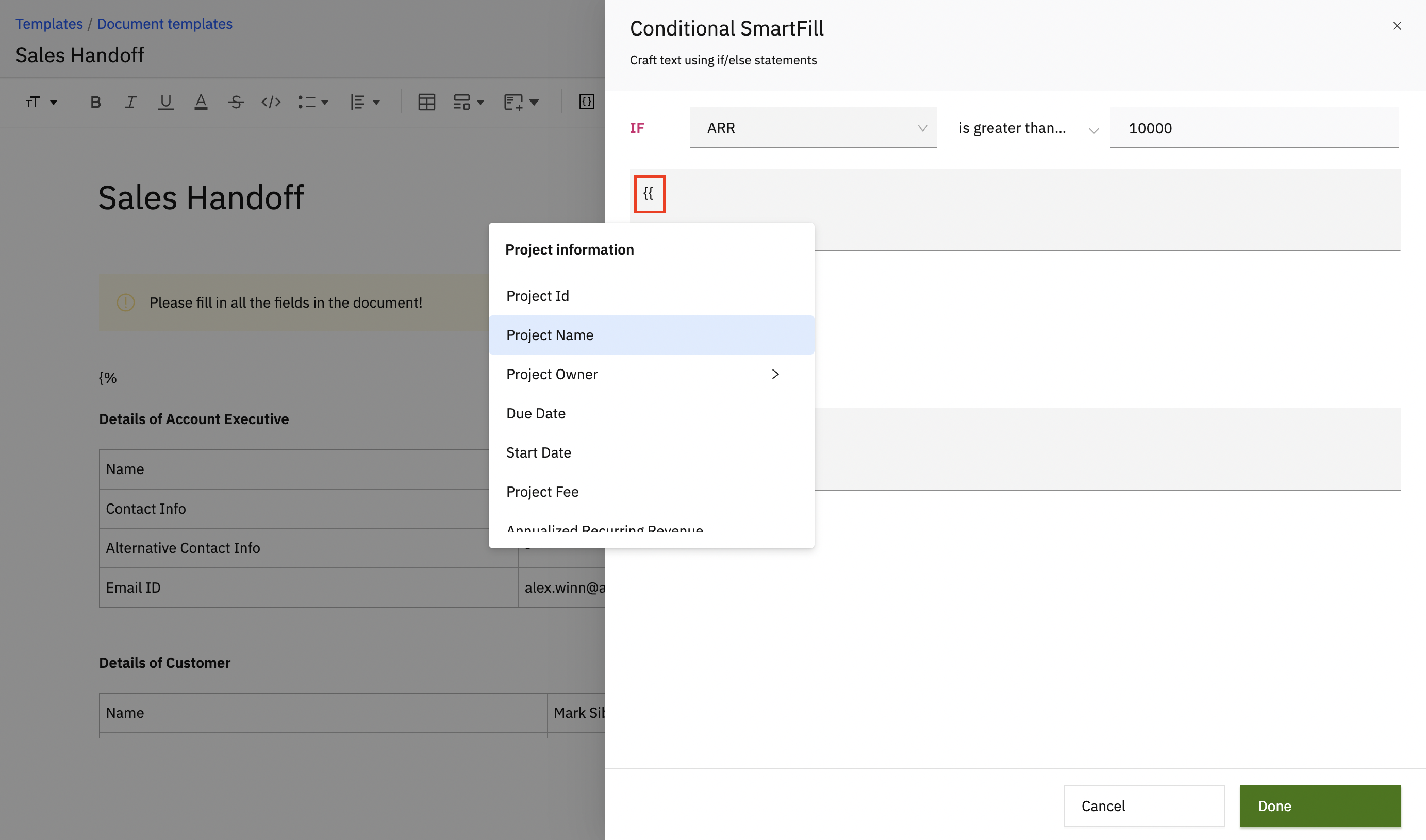
You can add an else if condition by clicking the Add else if button.

Set the filter conditions and text for the ELSE IF block.

Add the text for the ELSE block and click Done.

The Conditional SmartFill syntax will look like the screenshot below when added to templates. When the templates are added to a project, the Conditional SmartFill syntax will be replaced by project field values or the fallback value.

Adding SmartFill and Conditional SmartFill to Project Templates
- From Task descriptions

- From Private Notes in a Task

- From Documents in Spaces

Adding SmartFill and Conditional SmartFill to Document Templates

Adding SmartFill to Form Templates
In the Question Field label, add the opening braces for the syntax, {{, and choose the project field or team member field option from the SmartFill selection panel.

Adding SmartFill and Conditional SmartFill to Project Update Templates

Adding SmartFill to Projects
- From Task descriptions

- From Private Notes in a Task

- From Conversations

- From Documents in Spaces

- From Project Updates

- From the Chat section in a Project

- From the New Business Goal Description in Project Overview Page

Hey! Here's hoping that this support document was useful. You can write to us at care@rocketlane.com in case of any queries.