Much of the day-to-day conversation with a customer happens over email, spread across the inboxes of everyone on your team. Without a shared view, it is easy to miss a commitment, a concern, or a change in tone that only one person saw.
Email Intelligence addresses this. It enables the integration and configuration of your email ecosystem within Rocketlane, allowing the system to automatically detect and surface key signals from your correspondence.
Processing emails is significantly more complex than analyzing meeting transcripts because it requires managing several sophisticated layers:
| Layer | What it handles |
|---|---|
| Per-user authentication | Securely connecting individual mailboxes to the platform. |
| Thread grouping | Organizing fragmented messages into logical, cohesive conversations. |
| Privacy controls | Ensuring sensitive information is handled according to your security standards. |
| Interaction detection | Distinguishing between internal team chatter and external customer communications. |
| Account mapping | Automatically linking specific email data to the correct accounts within your instance. |
In this article
Before You Start
- Inbox connection: to support these processing layers and maintain strict privacy standards, Email Intelligence requires a secure, direct link to each team member's mailbox. The setup is a two-step connection process involving both administrators and individual users (see Connect an Inbox).
- Account-wide setting: the back-sync start date is controlled at the org level and applies to every user who connects email for the first time.
- Permissions: the Exclusions page is visible only to team members with the Can manage exclusion list permission.
- CRM data: account mapping typically depends on your CRM integrations, such as Salesforce or HubSpot. A thread appears in Rocketlane only when it can be mapped to an existing account.
Connect an Inbox
To ensure Email Intelligence works effectively, each team member must individually connect their inbox to Rocketlane.
Step 1: An Admin Turns On Record email
- Go to Settings > Team members.
- Select the user.
- Turn on the Record email toggle for that account.
Step 2: The User Authenticates Their Inbox
- Check inbox: The selected user will receive an automated invitation email from Rocketlane.
- Authenticate: The user must open the email and follow the prompts to securely authenticate their inbox, granting Rocketlane the necessary permissions to sync data.
Configure Email Intelligence Settings
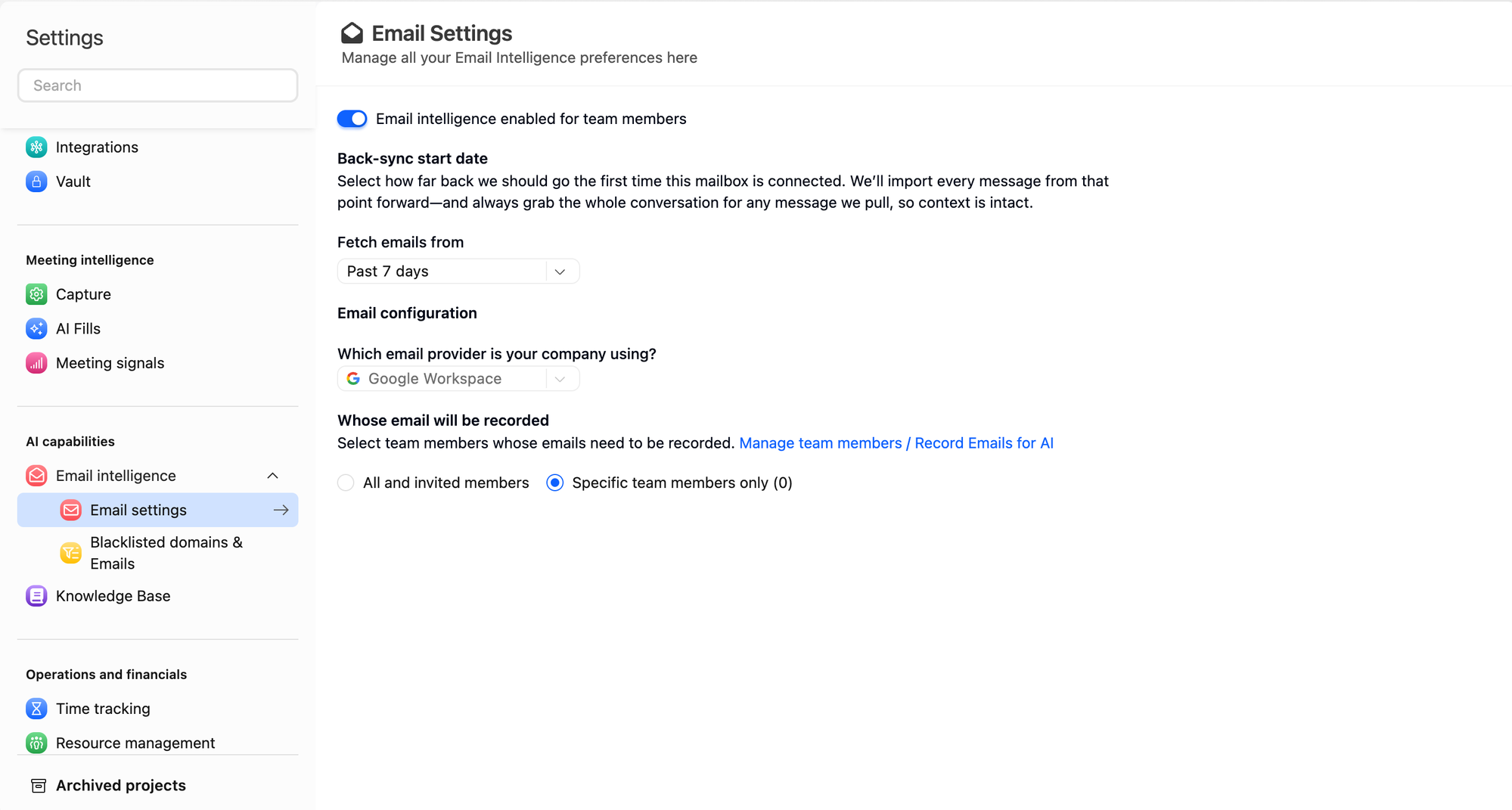
Email Intelligence settings control how Rocketlane imports and processes historical email data. An admin configures them:
- Go to Settings.
- Under AI capabilities, select Email intelligence.
- Select Email settings.
- Use the master toggle Email intelligence enabled for team members:
- Enabled: Rocketlane processes and analyzes emails based on your preferences.
- Disabled: Email intelligence is paused.
Back-Sync Start Date
When a user connects email for the first time, Rocketlane imports emails back to a configured lookback window. This org-level setting determines the initial import window.
Available fetch options:
- Past 7 days
- Past 30 days
- Past 90 days
- Past 180 days
- Past year
- Year-to-date
- All available emails
- Custom date range
Thread-Aware Backfill Behavior
Rocketlane uses thread-aware backfill:
- If any email in a thread is within the backfill window, Rocketlane fetches the entire thread so context is preserved.
- Rocketlane may store individual messages internally, but surfaces Email Pages at the thread level.
Email Thread Model and Shared Inbox Behavior
Thread Model
A thread is a collection of individual email messages grouped together. Rocketlane surfaces Email Pages at the thread level.
Shared Inbox Behavior
Threads effectively behave like a shared inbox in Rocketlane. If a user was part of the thread at any point, the thread can surface in Rocketlane subject to permissions.
Thread membership changes over time, such as people being added or removed, do not fragment the thread.
Email Privacy Controls
Email filtering has three major layers.
Authentication Gate
- If a user has not authenticated, their inbox cannot be synced.
- No authentication means no ingestion.
- A mailing list cannot be authenticated to Rocketlane.
Skip Emails With Exclusions
Some email conversations should never reach Rocketlane, such as threads with your bank, payroll provider, or legal counsel. Exclusions let you skip these emails before Rocketlane captures them. The same exclusions can also apply to meetings. For how exclusions affect meeting recordings, see Disable Meeting Intelligence and Recording Sources.
Exclude People or Domains
- Go to Settings, and under AI capabilities, select Exclusions.
- On the People and domains tab, select + Add exclusion.
- Enter an email address, a domain, or text that appears in an address.
- Under Apply to, keep Email selected. Keep Meetings selected too if you also want to skip meetings with these people.
- Select Add exclusion.
| You enter | Rocketlane skips |
|---|---|
| finance@acme.com | Email threads that include this exact address |
| acme.com | Email threads with anyone at acme.com or its subdomains |
| finance | Email threads with any address that contains "finance", such as finance-ops@beta.com |
Exclude Emails by Topic
- Open the Keywords tab and select + Add keyword.
- In Keyword or phrase, enter the text to look for, for example, "legal notice".
- Under Where we look, select Subject line. Subject line checks also cover replies and forwards.
- Under How we match, keep Whole words only selected to match "bank" but not "Fairbank". Select Match case if capitalization matters.
- Select Add keyword.
Internal Thread Exclusion
Rocketlane distinguishes between internal team discussions and external customer communications. A thread is classified as internal if every participant, including those in the To, From, CC, and BCC fields, belongs to your authenticated company domain.
Rocketlane treats addresses on your internal domains as internal. If your account uses Exclusions, you can review or add these domains under Settings > AI capabilities > Internal domains.
Processing behavior:
- All internal participants: If the entire participant list consists of internal domain users, Rocketlane will not read or ingest the thread.
- Mixed participants (internal and external): If at least one participant is from an external domain, the thread becomes eligible for ingestion.
Forwarded Emails
Rocketlane evaluates the current participants on a message, not the original sender chain:
- If you forward a customer email to a colleague and the resulting thread includes only internal participants, Rocketlane treats that interaction as an internal thread and excludes it from ingestion, even if the original message chain contained an external customer contact.
- To ensure a forwarded thread is picked up by Rocketlane, at least one external participant must remain on the active thread, for example, in the CC field.
Mapping Emails to Accounts
Ingesting an email thread is the first step. To make the data actionable, Rocketlane attaches each conversation to the correct account, ensuring every interaction is mapped to the right customer record.
A thread only becomes visible in Rocketlane if the system can successfully map an external domain or individual contact to an existing account. If a thread cannot be linked to a record, it remains unavailable to the end user.
What Happens If Mapping Fails
If Rocketlane cannot find a matching account for an ingested thread:
| Impact | What it means |
|---|---|
| No visibility | The thread will not appear in the UI. |
| No email pages | The system will not generate dedicated email pages for that conversation. |
| No signals | Rocketlane will not generate account-attached signals, meaning key insights could be missed. |
| Internal storage only | The email may be stored internally for system records but provides no functional value to the project team. |
How Accounts Get Mapping Data
Rocketlane relies on your existing ecosystem to understand who belongs to which account. This mapping typically depends on your CRM integrations, such as Salesforce or HubSpot:
- Sync: Accounts and contacts are synced directly from your CRM.
- Association: These contacts populate the account associations and verified email domains.
- Matching: When an email arrives, Rocketlane looks at the sender's domain and matches it against your synced CRM data.
The Importance of CRM Hygiene
The effectiveness of Email Intelligence is directly tied to your team's operational discipline in maintaining CRM data.
| CRM state | Outcome |
|---|---|
| Strong hygiene | Accurate contact lists and up-to-date account domains lead to high visibility and rich signal detection. |
| Poor hygiene | Missing contacts or outdated account data create blind spots where emails are ingested but never surfaced because they have nowhere to land. |
FAQ
Will Adding an Exclusion Remove Emails That Were Already Captured?
No. Exclusions apply only to emails received after you add them.
Why Couldn't I Add an Exclusion?
An exclusion with the same value may already exist, even with different capitalization. Edit the existing exclusion instead.
We Used Blacklisted domains & Emails Before. What Happens to Those Entries When Exclusions Is Turned On?
Once Exclusions is turned on for your account, Blacklisted domains & Emails no longer appears in Settings, and Rocketlane checks only the entries on the Exclusions page. Open the People and domains tab to confirm that your earlier entries are listed. If an entry is missing, add it again with + Add exclusion.
Entries carried over from the earlier list show Meetings and email under Applies to. This means they now skip meetings with those people or domains, not only email. To keep an entry for email only, open its menu, select Edit, clear Meetings under Apply to, and select Save changes.
Why Can't I Find Exclusions in Settings?
Either your account still uses Blacklisted domains & Emails under Email intelligence, or you do not have the Can manage exclusion list permission. Ask your account admin which applies.
Summary
- Each team member connects their own inbox. An admin turns on Record email for the user, and the user authenticates from the invitation email.
- Admins set the back-sync window and the master toggle under Settings > AI capabilities > Email intelligence > Email settings.
- Rocketlane works at the thread level. If any email in a thread falls inside the back-sync window, the whole thread is fetched.
- Threads are skipped when no participant has authenticated, when every participant is internal, or when a participant or subject matches an exclusion.
- Accounts without Exclusions manage an email-only list under Blacklisted domains & Emails. When Exclusions replaces it, carried-over entries apply to both meetings and email until you edit them.
- A thread appears in Rocketlane only when it can be mapped to an account, so accurate CRM contacts and domains directly affect what your team sees.