In the new Customer Portal experience, the task list shown to customers is controlled by shared views. By default, the Effort column may be visible in the customer-facing task list. To hide it, configure which shared views are displayed on the portal and ensure the customer-facing view does not include the Effort column.
This article explains the recommended approach using Spotlighted shared views, along with an alternative option.
When to Use
Use this setup when:
- Customers can see the Effort column in the Customer Portal task list
- Effort should remain visible internally but hidden from customers
- The customer-facing task list should show a curated view, not every shared view
Prerequisites
- Project admin or manager-level access in Rocketlane
- Access to the project where the Customer Portal task list is configured
- The project is using the new Customer Portal experience, where task list visibility is controlled by shared views and spotlighting
How Task List Views Work in the New Customer Portal
In the new Customer Portal:
- Customers can only see shared views that are configured to be shown in the Task List section.
- Default views are not visible to customers unless they are saved and shared as shared views.
This means hiding a column (such as Effort) is done by controlling which shared view the portal displays.
Recommended: Show Only Shared Views with Spotlight
This approach is recommended because it provides granular control over what customers see and avoids needing to update multiple shared views.
Step 1: Open Task List settings in the Customer Portal
- Open the relevant project.
- Navigate to the Customer Portal.
- Locate the Task List section.
- Open the Task List section settings.
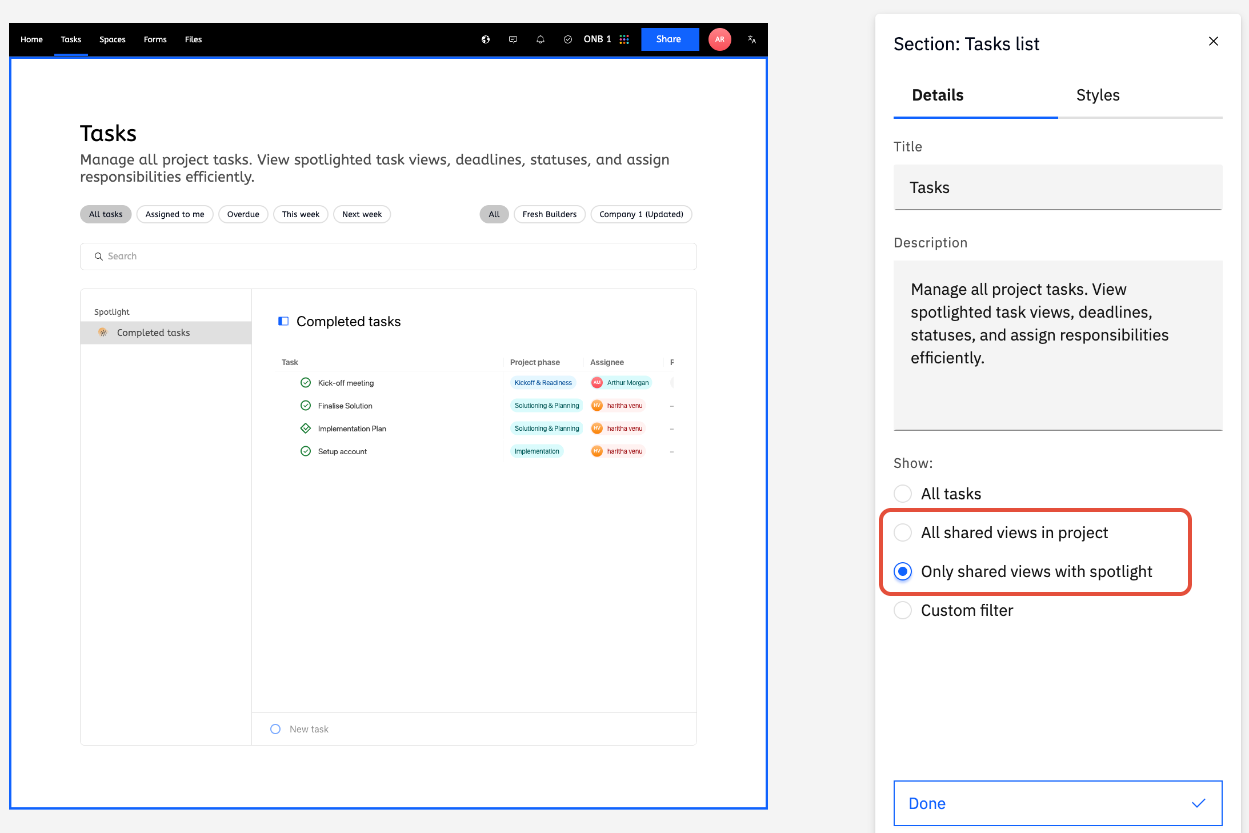
Step 2: Update the Show setting
Under Show, select:
- Only shared views with spotlight
Two options are available:
- All shared views in the project
- Only shared views with spotlight (recommended)
Step 3: Create a shared task list view without the Effort column
- Go back to the project Task list (inside Rocketlane, not the portal).
- Create a new shared view.
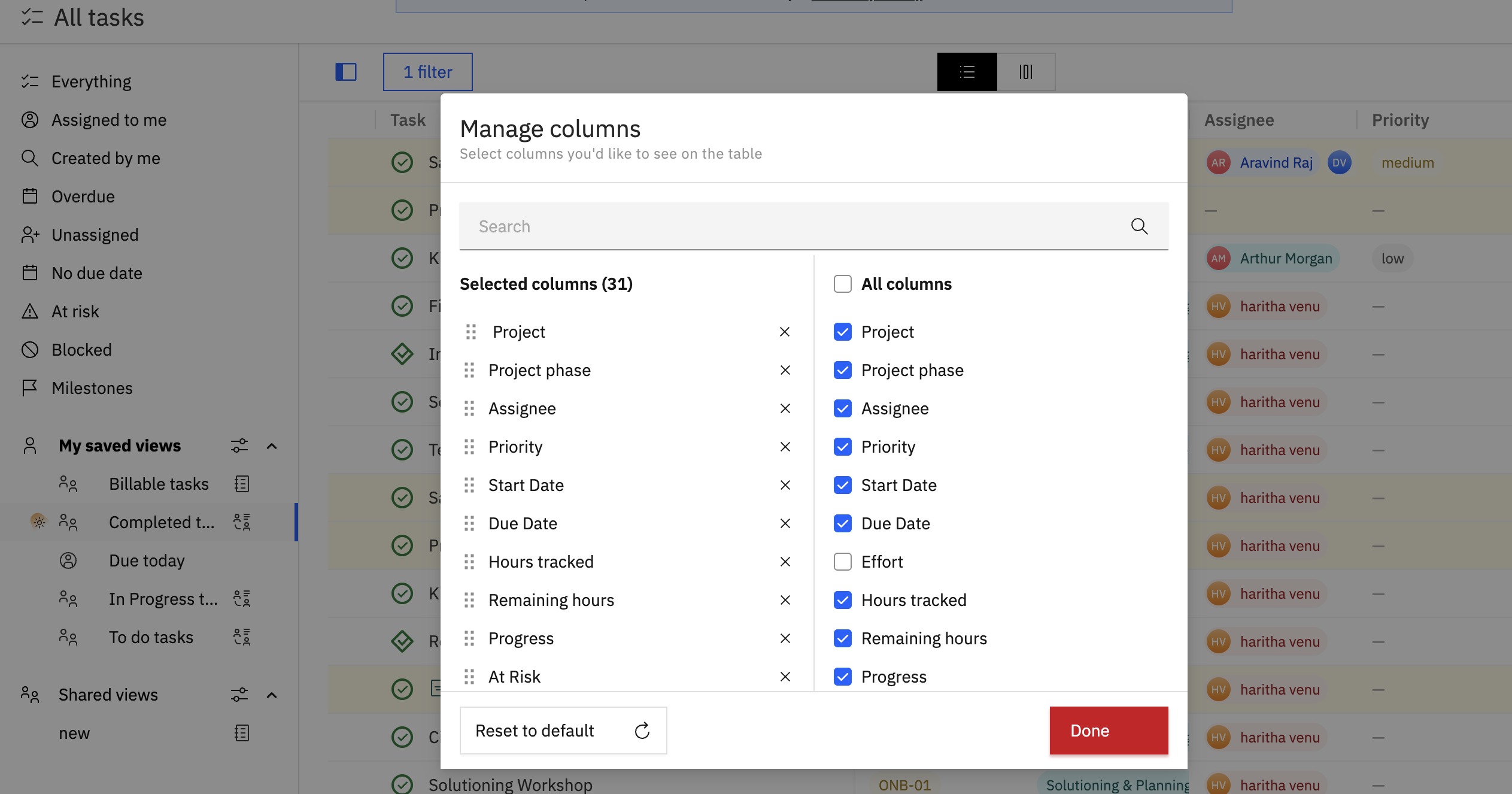
- Select Manage Columns.
- Deselect or remove the Effort column.
- Save the view.
Ensure to toggle on Customer Portal under Advanced Sharing Options when creating a new Shared Task List view, so this view is available in the customer portal, and then save the view.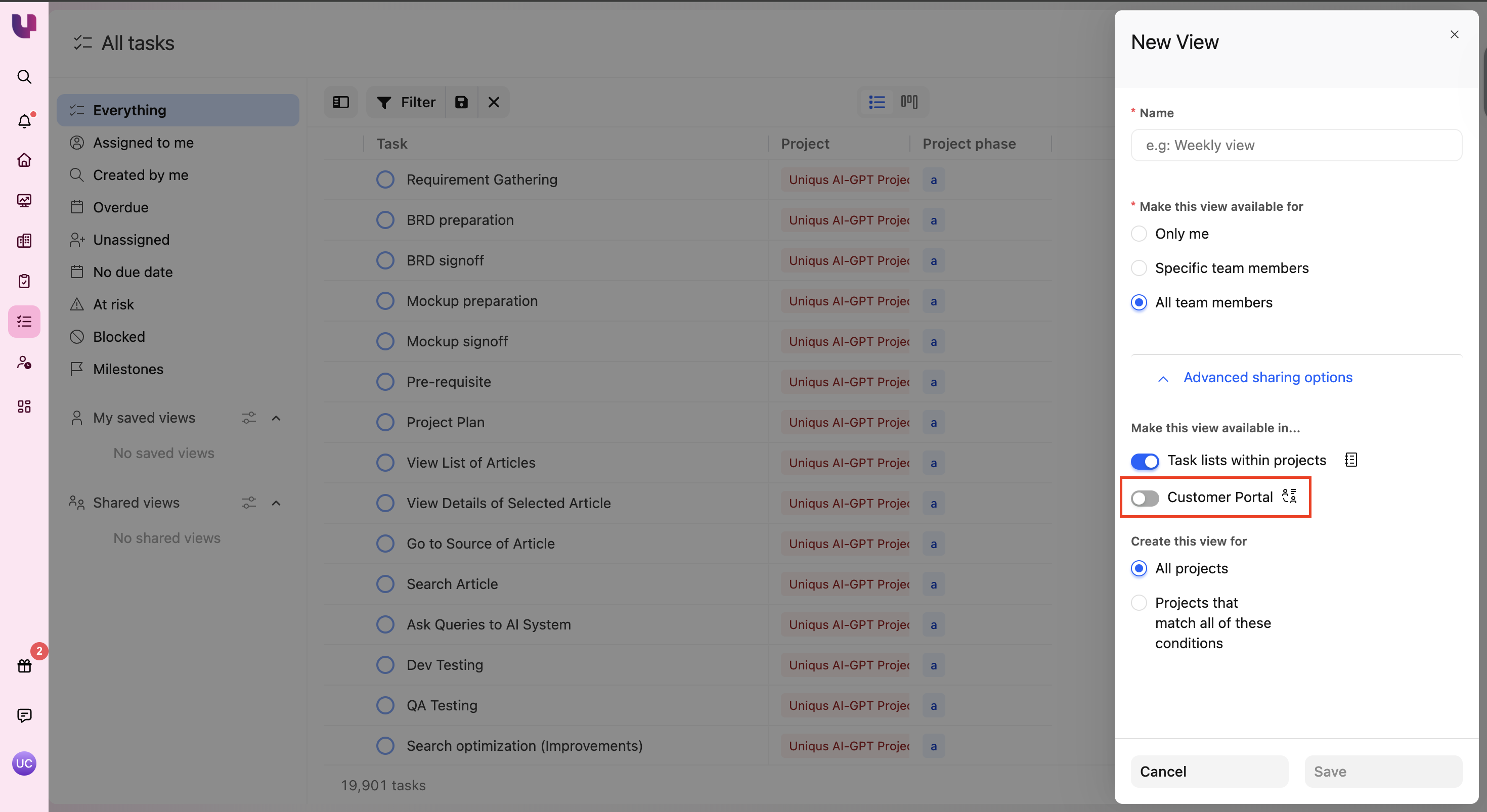
Step 4: Add Spotlight to the new view
- Open the newly saved shared view (the one without the Effort column).
- Add a Spotlight to the view.
Spotlighting marks this view as eligible to be shown on the Customer Portal when the portal is configured to show only spotlighted shared views.
Step 5: Verify in the Customer Portal
- Open the Customer Portal.
- Go to the Task List section.
- Confirm the portal is displaying the spotlighted view.
- Confirm the Effort column is no longer visible to customers.
Alternative: Show All Shared Views in the Project
If Show → All shared views in the project is selected, every shared task list view becomes visible to customers in the portal.
In this setup:
- The Effort column must be removed manually from every shared view on the task list page.
- This is more time-consuming and harder to maintain, which is why the Spotlight approach is recommended.