Many teams create Rocketlane projects from Salesforce before a deal closes, so resource managers can see upcoming demand and plan staffing early. Those early allocations are tentative, so they are usually added as soft allocations. When the opportunity is won, every soft allocation on the project should be confirmed. Converting them by hand on each project is slow and easy to forget.
This article shows how to confirm them automatically. When the opportunity stage in Salesforce changes to Closed Won, the Salesforce integration updates a project field in Rocketlane, and a global automation turns all of the project's allocations hard. No HTTPS request is needed.
In this article
Before You Start
- Soft allocations must be turned on. Go to Settings > Resource management and turn on Enable soft allocations. If soft allocations are off, the automation still runs but changes nothing.
- New projects should start with soft allocations. In the same settings, turn on Create new projects from templates with soft allocations, so projects created from Salesforce start as tentative.
- The Salesforce integration must be connected, with an automation that creates projects from the opportunity. See How to Set Up the Rocketlane Salesforce Integration.
- You need permission to manage global automations. See Setting Up Global Automations.
How It Works
| Stage | Where it happens | What happens |
|---|---|---|
| 1. Opportunity created | Salesforce, then Rocketlane | The Salesforce integration creates the project from a template. Allocations are created as soft allocations. |
| 2. Opportunity marked Closed Won | Salesforce | The stage picklist changes to Closed Won. |
| 3. Field sync | Rocketlane | Fields Sync updates the mapped project field, for example Opportunity Stage, to Closed Won. |
| 4. Global automation runs | Rocketlane | The Field is updated trigger fires, the condition checks for Closed Won, and the Turn all allocations action switches every soft allocation on the project to hard. |
Step 1: Sync the Opportunity Stage to a Project Field
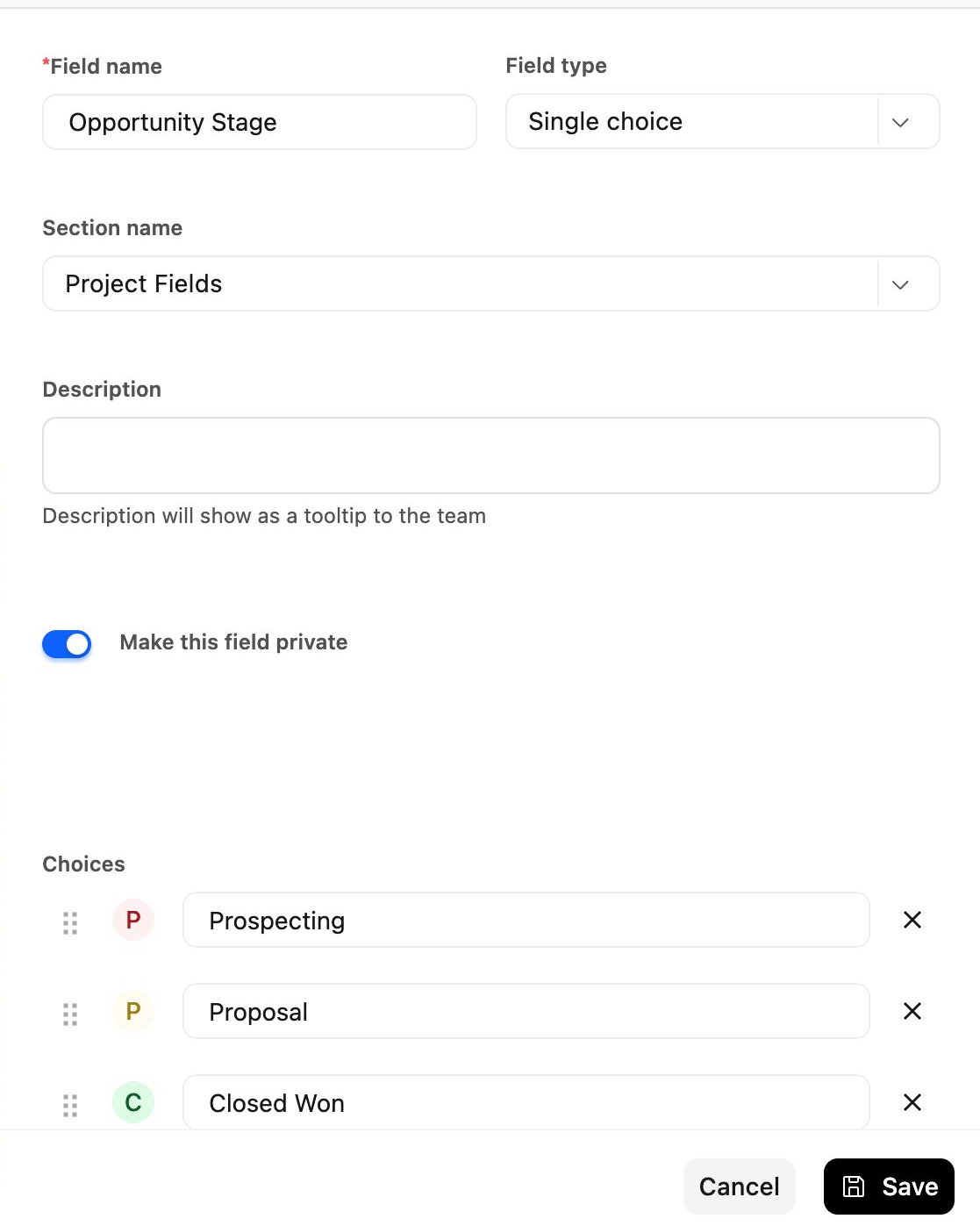
The automation needs a Rocketlane project field that changes when the deal is won. The Salesforce Stage field is a picklist, which syncs to a Single choice project field.
- Go to Settings > Fields > Project fields and select New field.
- Enter a Field name, for example Opportunity Stage, and set Field type to Single choice.
- Under Choices, select Add option for every stage you sync, including Closed Won. Use the same labels as the Salesforce picklist values.
- Select Save.
- Go to Settings > Integrations > Salesforce.
- In Fields Sync, select the same Salesforce object your project-creation automation uses, for example Opportunity.
- Map the Salesforce Stage field to the Opportunity Stage project field.
- Set the sync direction from Salesforce to Rocketlane.
- Save the mapping.
From now on, when the opportunity stage changes in Salesforce, the project field changes to match.
Step 2: Create the Global Automation
- Go to Settings > Automations, select New automation, and then select Blank slate.
- Select Untitled and name the automation, for example "Closed Won: Turn Allocations Hard".
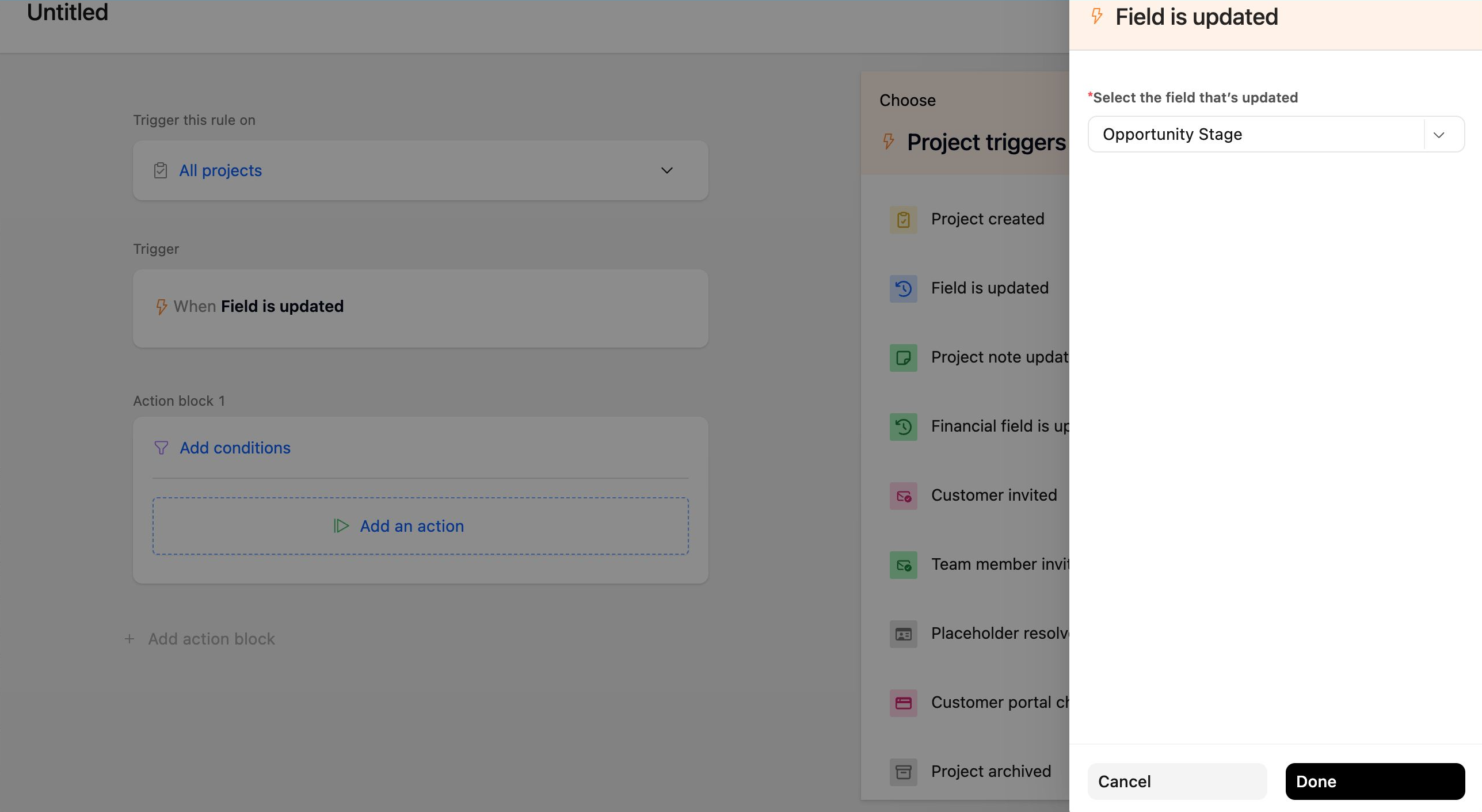
- Under Trigger this rule on, select All projects.
- Under Project triggers, select Field is updated.
- In Select the field that’s updated, choose Opportunity Stage, and then select Done.
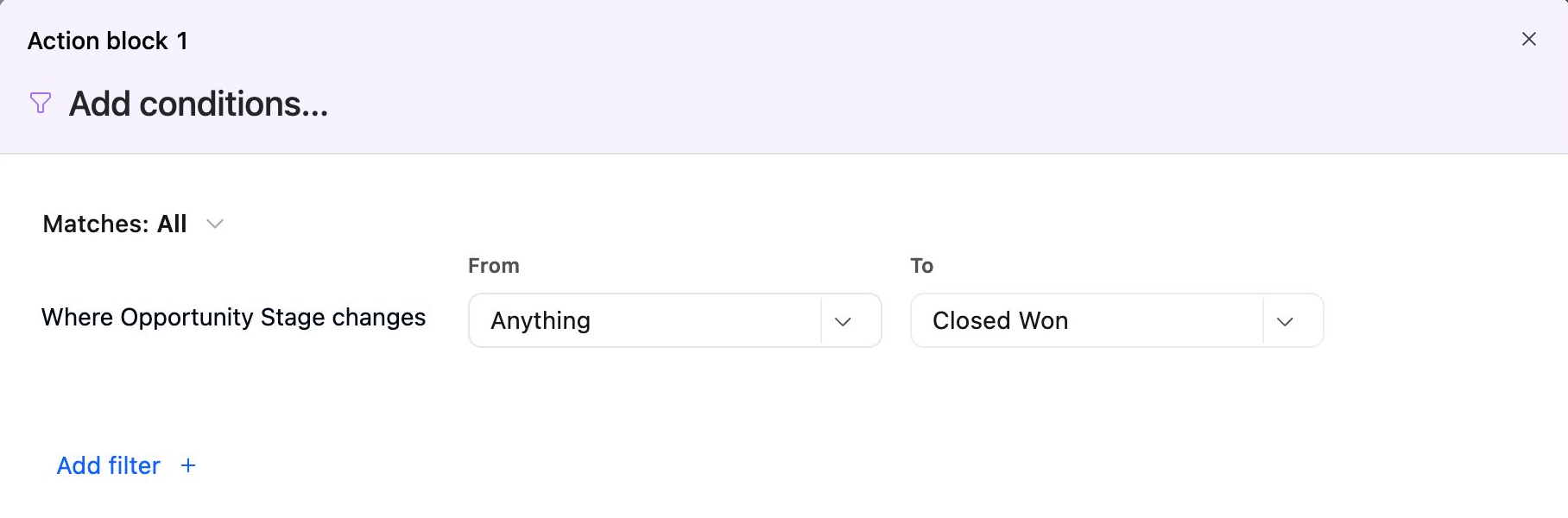
- In Action block 1, select Add conditions.
- For Where Opportunity Stage changes, set From to Anything and To to Closed Won, and then select Save.
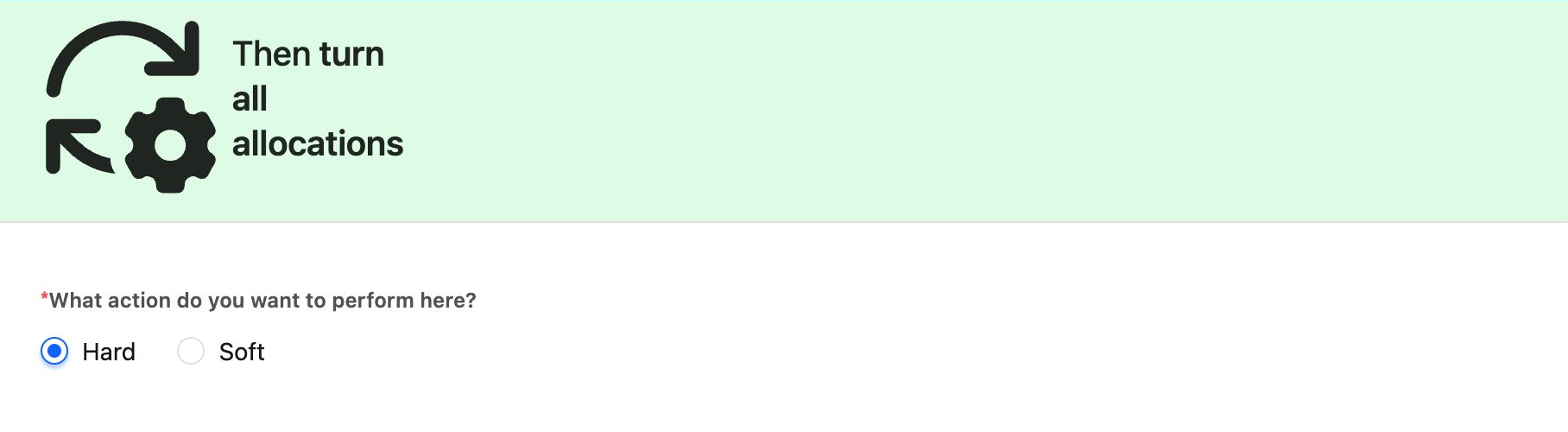
- Select Add an action, and then select Turn all allocations. It is listed under Project actions, or you can search for it.
- For What action do you want to perform here?, select Hard, and then select Save.
- Review the automation, and then select Save. Check that the automation is turned on in the automations list.
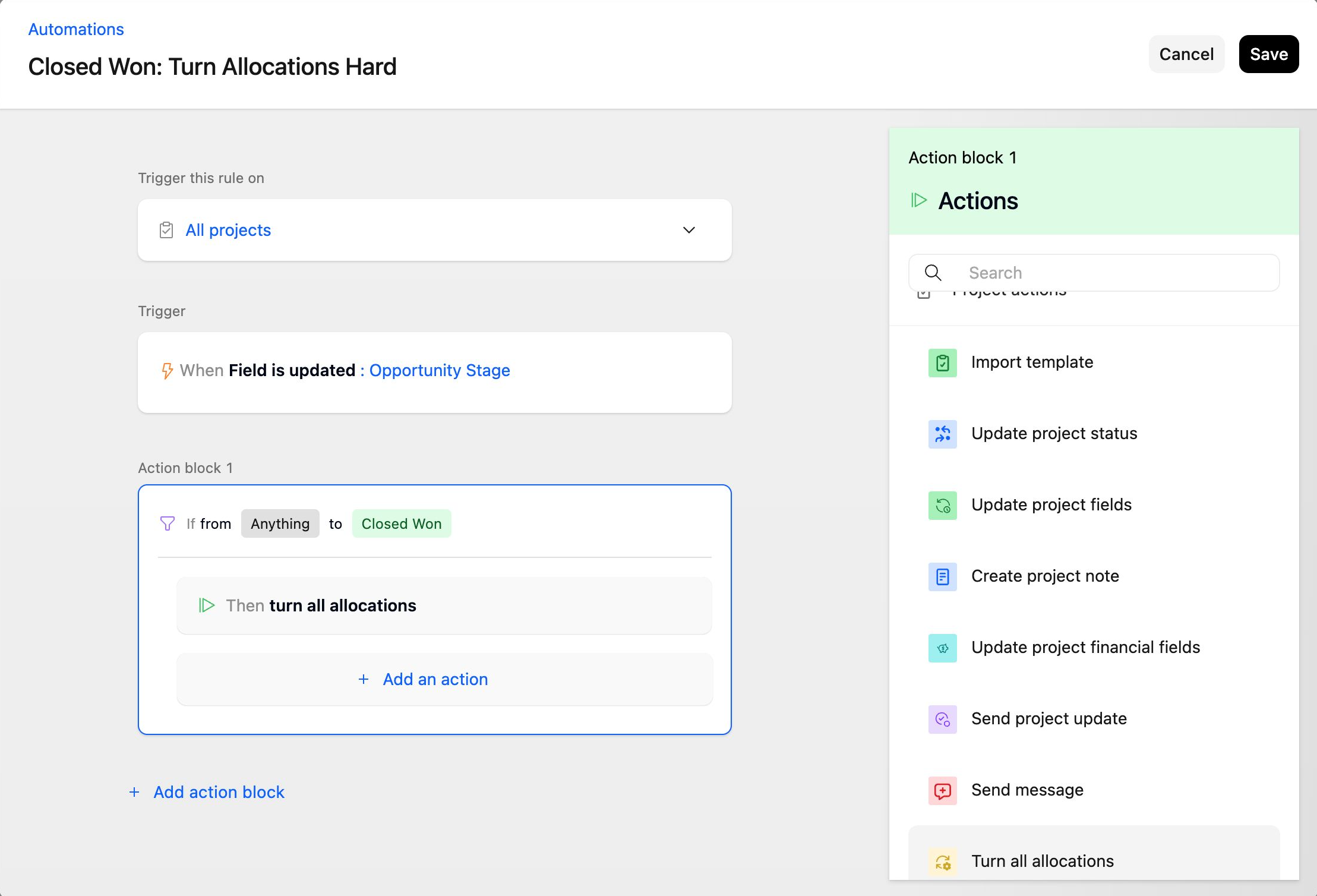
The automation runs on every project in the account. It acts only on the project whose field changed.
Step 3: Test the Automation
- In Salesforce, open a test opportunity that has a linked Rocketlane project with soft allocations.
- Change the Stage to Closed Won and save.
- In Rocketlane, open the project and check that Opportunity Stage shows Closed Won.
- Go to Resource Management and check that the project's allocations are now hard.
- If nothing changed, check the run in Automation Logs.
What the Action Changes
The Turn all allocations action applies to the whole project.
| Applies to | Behavior |
|---|---|
| Team members and placeholders | Both are converted. |
| Past, current, and future allocations | All allocations on the project are converted, whatever their dates. |
| Allocations that are already hard | Left unchanged. |
| Projects with multiple budgets | Allocations on every budget are converted. |
| Deleted allocations | Not affected. |
The change happens as soon as the automation runs and is not undone automatically. If a deal is reopened, an admin can turn the allocations back to soft in Resource Management, or with a second automation that uses Turn all allocations > Soft.
Start From the Automation Library
The automation library includes a ready-made automation, Project Status In Progress - Turn Allocations Hard. It turns all allocations hard when the project status changes to In Progress. It appears under Project when you select New automation. You can use it as a starting point and replace the trigger field and value with Opportunity Stage and Closed Won.
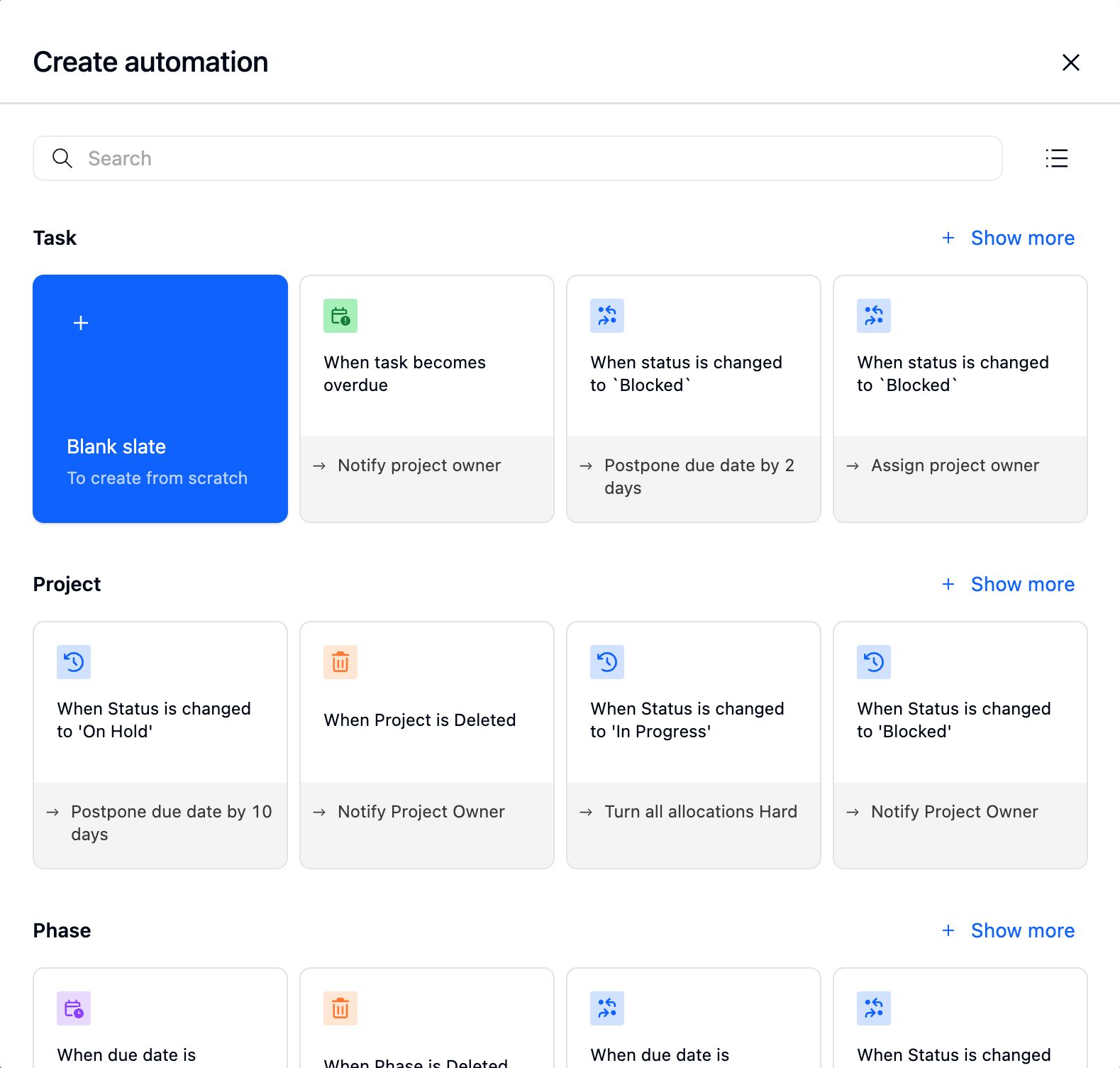
See Automations That Run on Project Triggers.
FAQ
Do I Need an HTTPS Request to Update the Allocations?
No. Turn all allocations is a built-in action. Use an HTTPS request only if you also want to call an external system.
Why Didn't Any Allocations Change?
Check these in order:
- Soft allocations are turned off for the account, so there is nothing to convert.
- All allocations on the project were already hard.
- The project field did not change to Closed Won. Check the field on the project and the Salesforce sync.
- The condition value does not match the field option.
- The automation is turned off.
Why Can't I Add a Condition for Closed Won?
The project field is not a Single choice field. Trigger conditions support Single choice, Number, and Date fields only.
Does the Automation Convert Allocations on Other Projects?
No. It converts allocations only on the project whose field was updated.
Can I Convert Only Some Allocations?
No. Turn all allocations converts every soft allocation on the project. To convert individual allocations, change them in Resource Management.
Can I Use the Same Approach With a Different Trigger?
Yes. Turn all allocations is also available in task, phase, and form automations, and in project template automations. For example, you can turn allocations hard when a kickoff task is completed.
Summary
- Sync the Salesforce opportunity Stage to a Single choice project field.
- Create a global automation on All projects with the Field is updated trigger, a condition from Anything to Closed Won, and the Turn all allocations > Hard action.
- The action converts every soft allocation on that project, for team members and placeholders, regardless of dates.
- Soft allocations must be turned on, or the automation changes nothing.
- No HTTPS request is needed.