Enabling Multi-Budget changes more than the Financials tab. Financial fields that previously stored one value per project can store separate values for each budget. Filters and reports become budget-aware, time and resource data can be associated with individual budgets, and invoices are created from selected budgets instead of the project as a whole.
If your team uses saved filters, custom reports, automations, or integration mappings based on project financial fields, review and test them before enabling Multi-Budget.
This article explains the differences between single-budget and Multi-Budget behavior and provides a checklist for validating your existing setup. For instructions on configuring and using budgets, see Using Multi Project Budgets in Rocketlane and the related articles covering time tracking, resource management, expenses, reports, posting periods, integrations, invoices, credit notes, and revenue recognition.
In this article
- How Billing Type Changes
- How Project Financial Fields Change
- Changes to Project Setup
- Changes to Filters
- Changes to Reporting
- Changes to Time Tracking
- Changes to Resource Management
- Changes to Expenses
- Changes to Invoices
- Changes to Credit Notes
- Changes to Revenue Recognition
- Changes to Integrations
- Changes to Automations
- Changes to Team Assignment
- FAQ
- Summary
How Billing Type Changes
The Billing Type field remains a single-choice field wherever you configure it. Each budget can use one of the following billing types:
- Fixed Fee
- Time & Material
- Subscription
- Non-Billable
The difference is where that value is stored.
In a single-budget project, Billing Type applies to the entire project. In a Multi-Budget project, each budget has its own Billing Type. This allows one project to contain, for example, a Fixed Fee budget and a Time & Material budget.
When Billing Type appears as a filter or reporting field, it can represent every billing type used across the project's budgets. The filter may therefore become a multi-select field instead of accepting only one value.
How Project Financial Fields Change
| Field | Single-budget behavior | Multi-Budget behavior |
|---|---|---|
| Billing Method | One value for the project  | One value for each budget 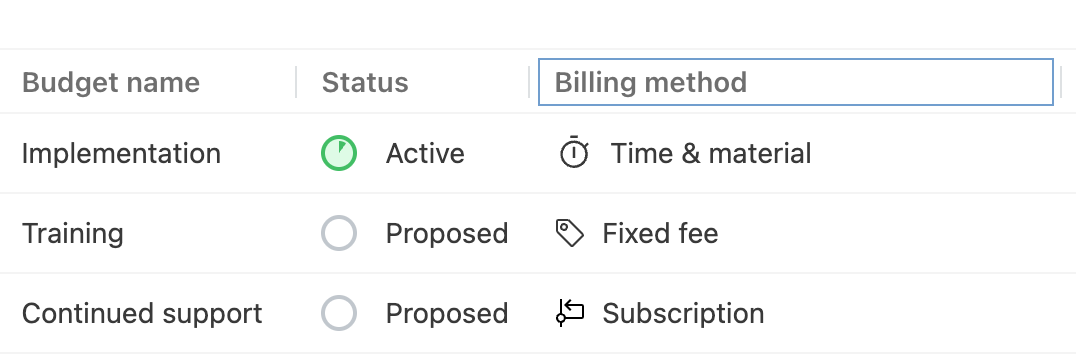 |
| Budget amount | One value for the project  | One value for each budget 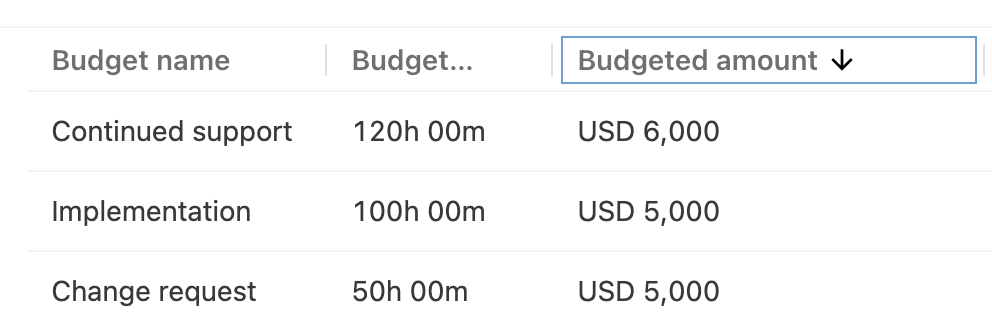 |
| Budgeted Hours | One value for the project  | One value for each budget 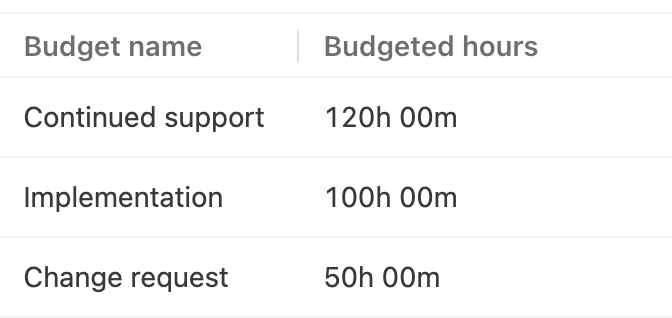 |
| Revenue Recognition Type | One value for the project  | One value for each budget 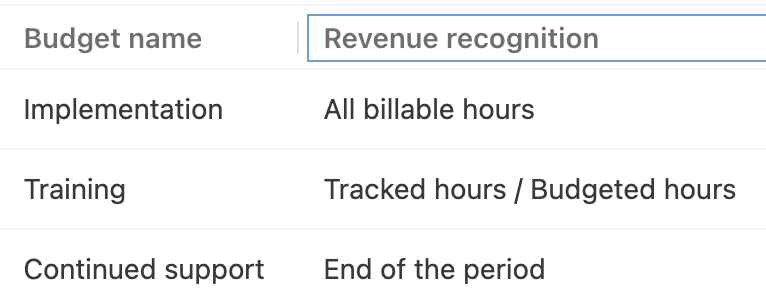 |
| Rate card | One value for the project | One value for each budget |
When a report, export, or integration reads a financial field after Multi-Budget is enabled, determine whether it should use:
- The total aggregated across all budgets.
- A value from a specific budget.
- Separate values for every budget.
Project Fields That Disappear
Enabling Multi-Budget removes several subscription and period fields from project-level filters and columns. Some have budget-level replacements, while the Current period fields do not.
| Removed project-level field | Budget-level replacement |
|---|---|
| Period budgeted hours | Period hours |
| Current period number | None |
| Current period start date | None |
| Current period end date | None |
| Current period revenue | None |
| Current period tracked hours | None |
Changes to Project Setup
Budget information is available across three areas of a Multi-Budget project.
| Location | Purpose | Example |
|---|---|---|
| Financials | Review Overall financials or switch to the financials for an individual budget | 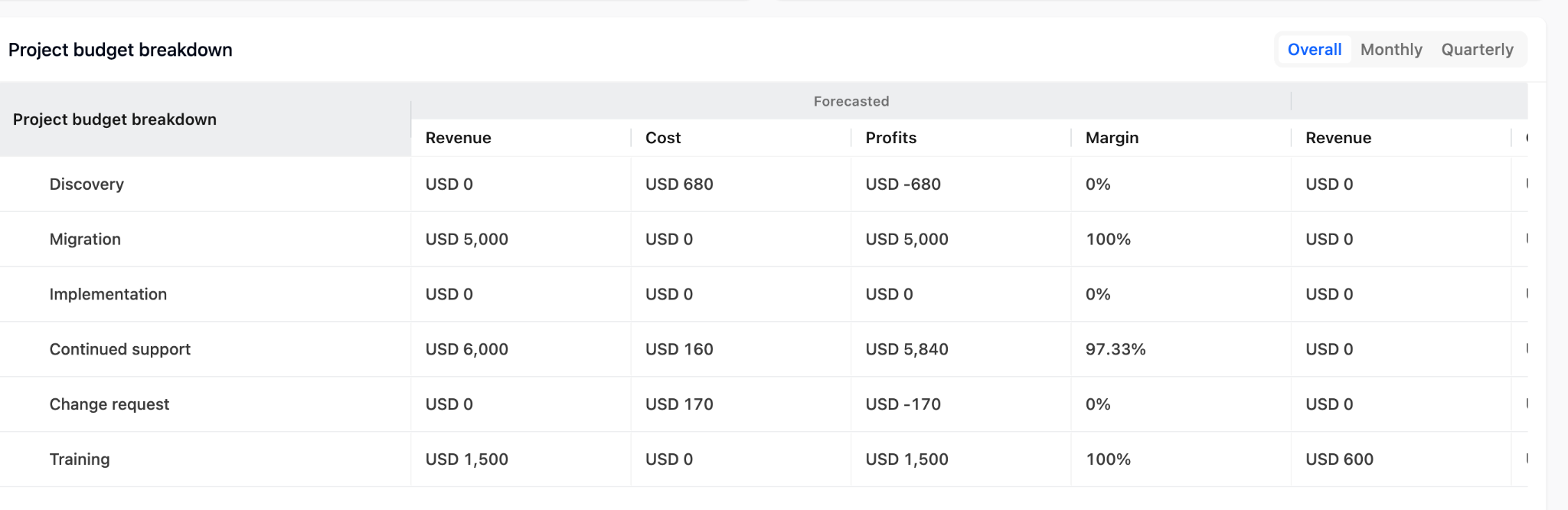 |
| Budgets | View the project's budgets | 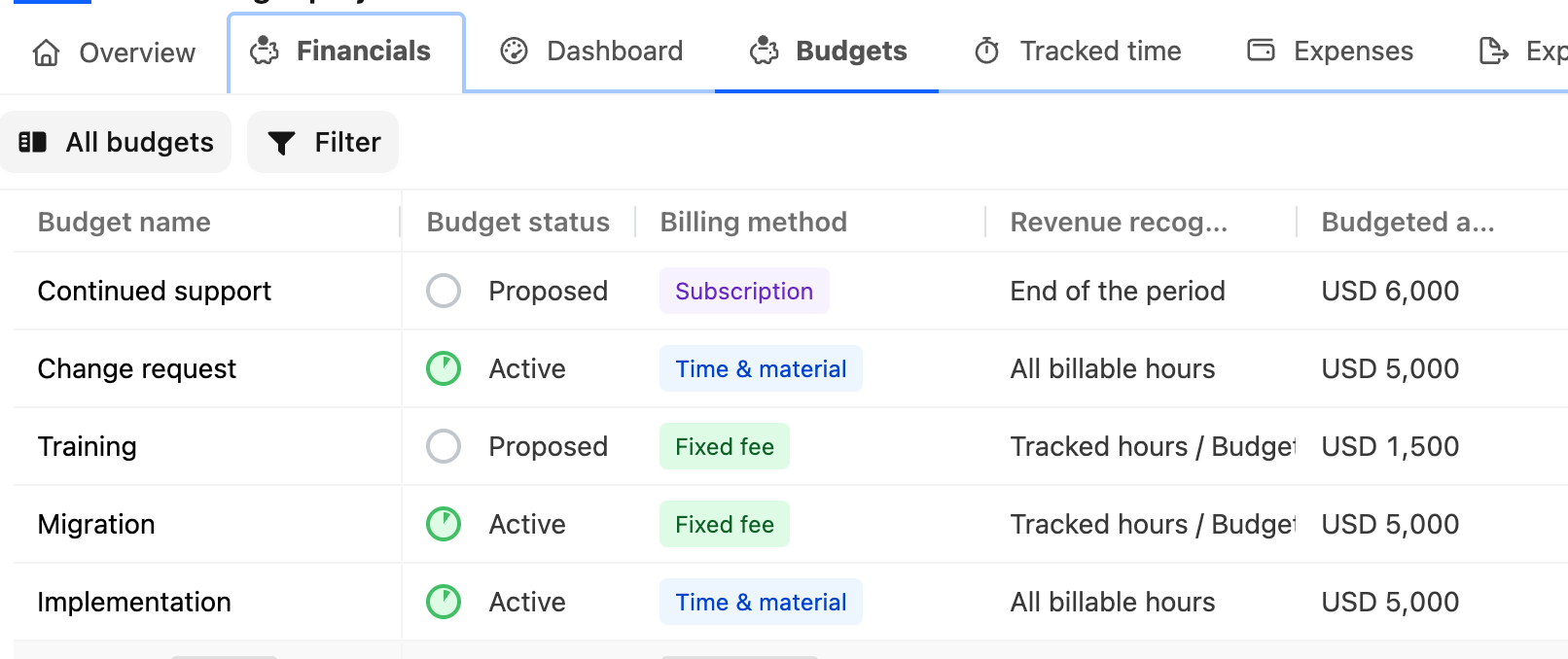 |
| Settings > Budget management | Create and edit budgets | 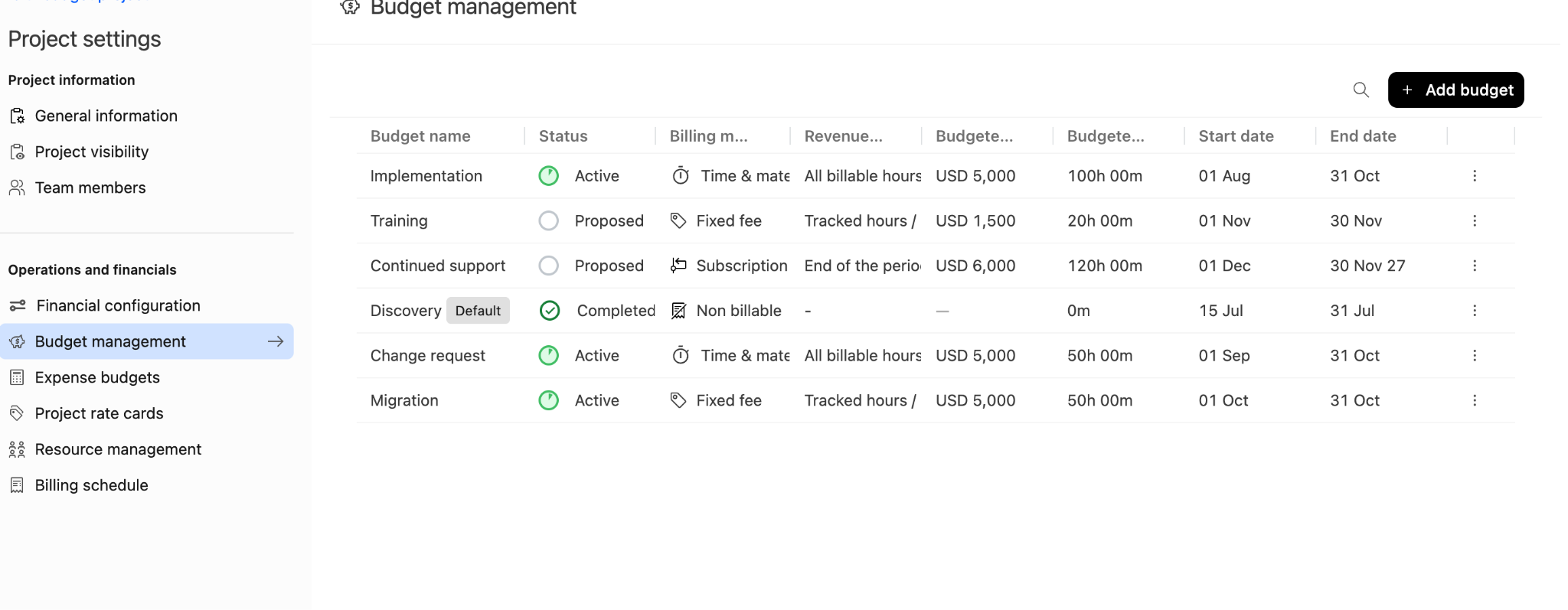 |
Financials
In a single-budget project, the Financials tab displays the project's financial information directly.
In a Multi-Budget project, the Financials tab includes a switcher that lets you move between Overall financials and the financials for an individual budget.
Budgets
The Budgets tab lists the budgets associated with the project.
Budget Management
Create and edit budgets from Project settings > Budget management.
Selecting Add budget opens a drawer where you can enter the budget details. Opening an existing budget takes you to a separate page that can contain the following tabs:
- Basic info
- Team members
- Revenue recognition
- Revenue entries
The tabs available depend on the budget's billing method and your permissions.
Project Creation
The financial step in the project creation flow lets you choose between Single budget and Multi budget. Selecting Multi budget lets you add and configure several budgets while creating the project.
Project Summaries
Reports and summaries that previously showed one Billing Type can display multiple tags, with one tag for each billing type used by the project's budgets.
HubSpot and Salesforce cards on the project overview also use Multi-Budget-specific versions when the feature is enabled.
Changes to Filters
Billing Type Filters
Billing Type filters can become multi-select fields after Multi-Budget is enabled. This applies wherever shared project financial fields are used, including project lists, task lists, and reports.
Budget Filters in Timesheet List View
The available budget filter depends on where you open List View:
| Location | Budget filter behavior | Example |
|---|---|---|
| Inside a project | Displays a multi-select list containing that project's budgets | 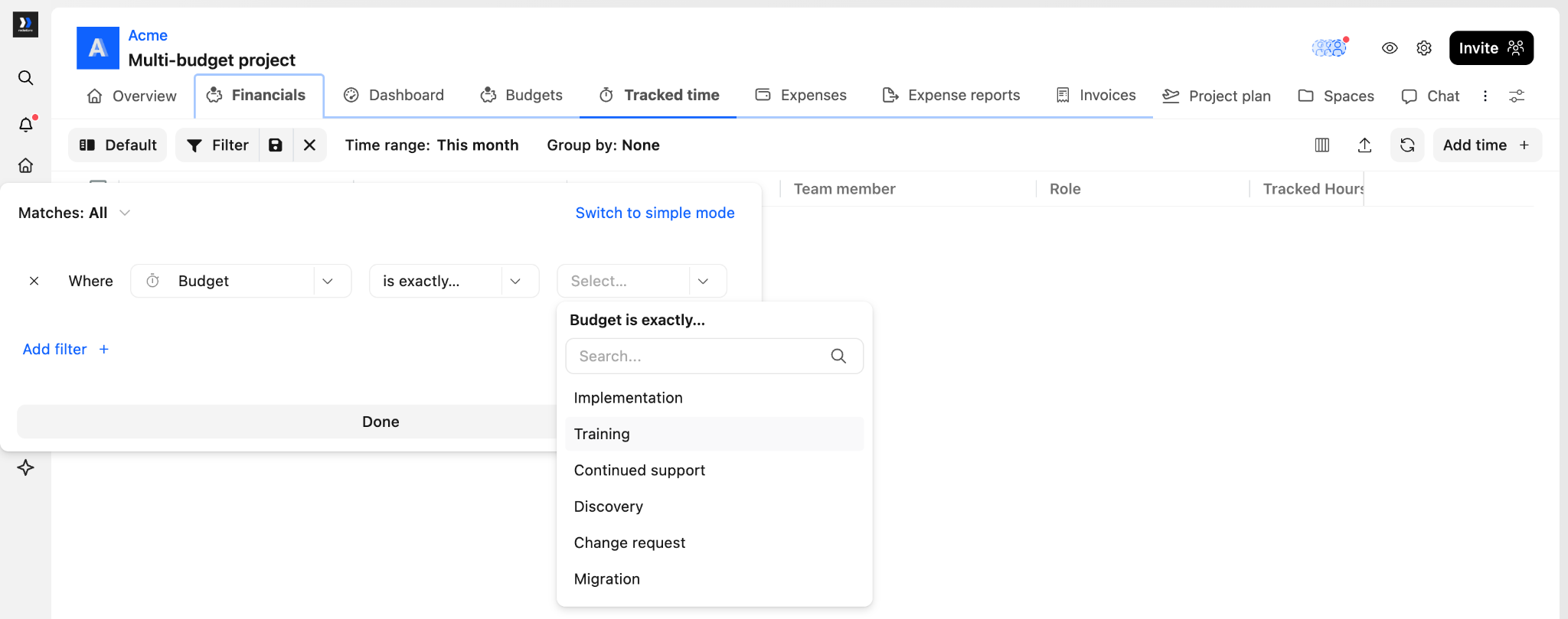 |
| Account-wide List View | Uses a free-text budget filter | 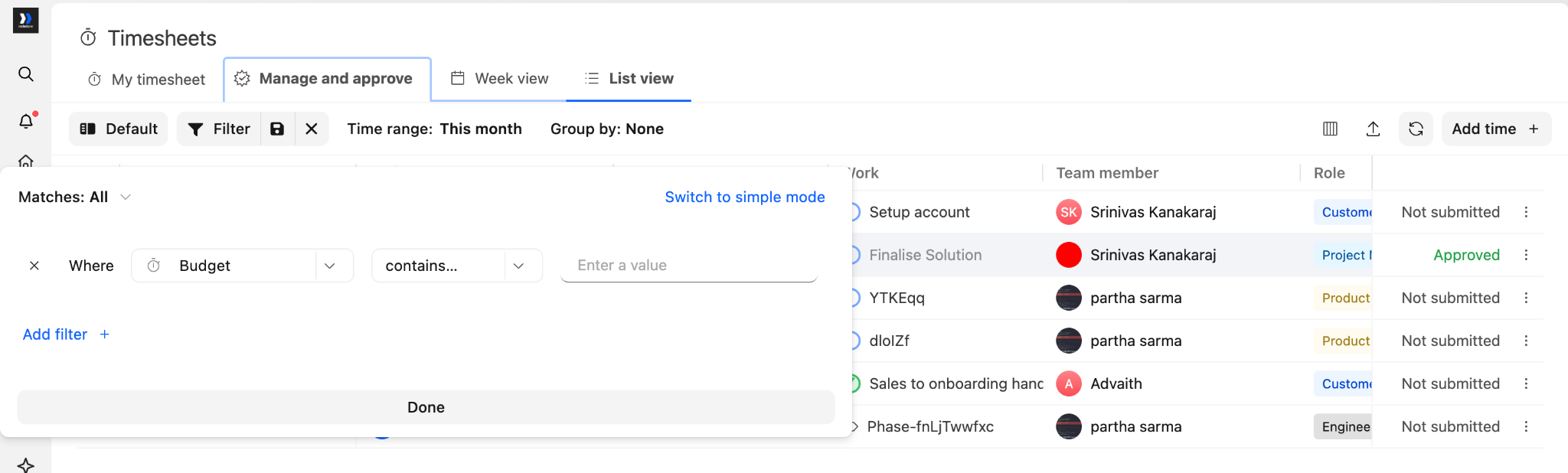 |
Changes to Reporting
There is no separate Budget report in the Reports list. Instead, budget information becomes available across existing reporting and dashboard surfaces.
Custom Reports
Custom Reports can use Budget as a report source. Selecting Budget changes what the report is built on and produces one row per budget.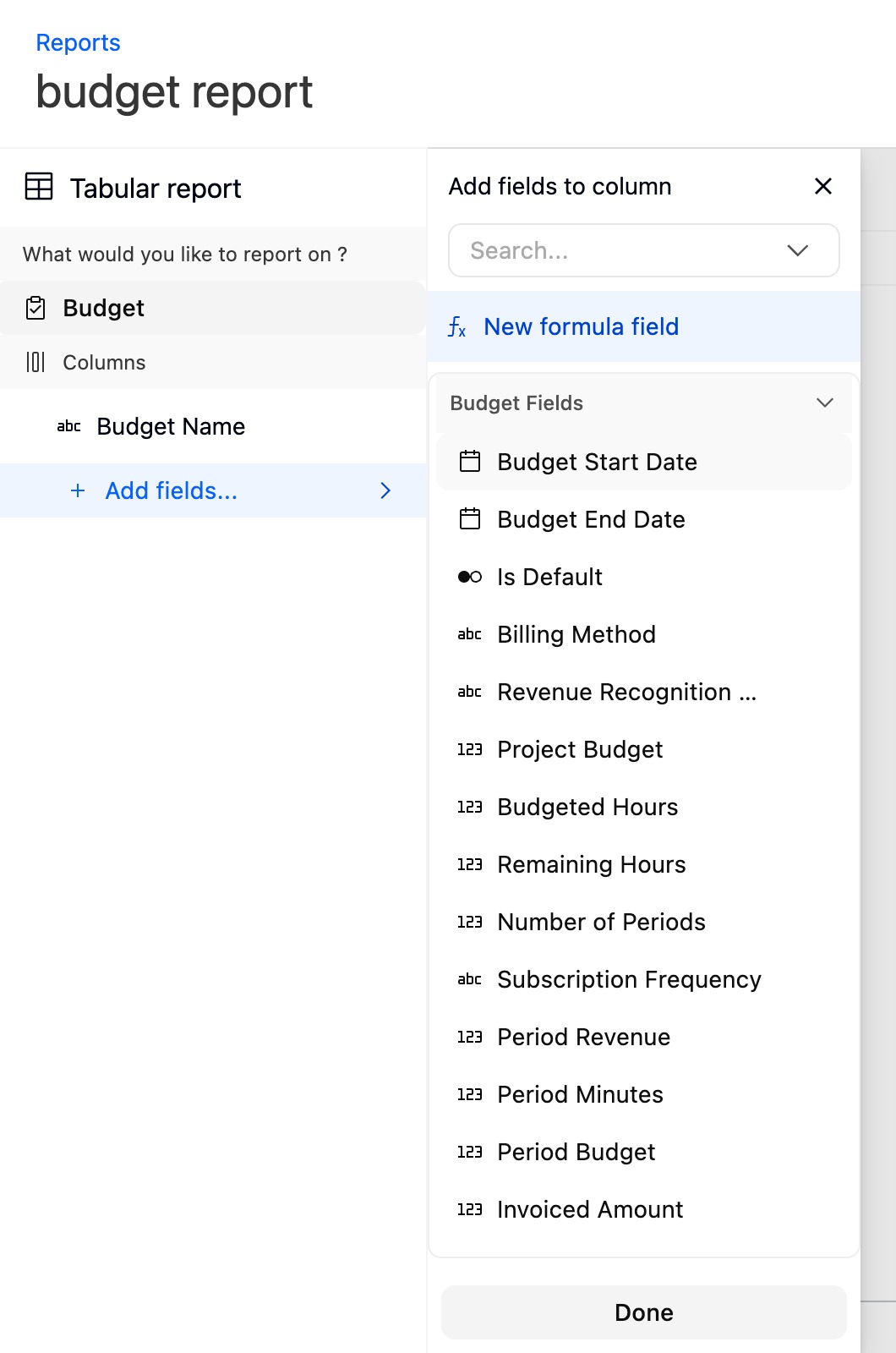
Budget can be enabled separately for tabular and pivot reports. This means your account may have Budget available as a source in one report type but not the other.
Profitability Report
The Profitability report becomes budget-aware. Its first column changes from Project name to Projects and budgets.
Budgets appear as rows beneath their projects, allowing margin and other profitability metrics to be reviewed for individual budgets instead of only at the project level.
Utilization Report
The Utilization report includes budget fields for filtering and grouping. This allows utilization data to be analyzed against the budgets associated with project work.
Time Analytics Reports
Time Analytics includes reports by project, people, and category.
In all three reports, the breakdown previously labelled Phases and tasks becomes Budgets, phases and tasks. This provides a budget-level view of tracked time alongside phase and task data.
Dashboards
Dashboard cards and charts can use Budget as a source. Budget fields can also be used for filtering, grouping, and comparing financial metrics.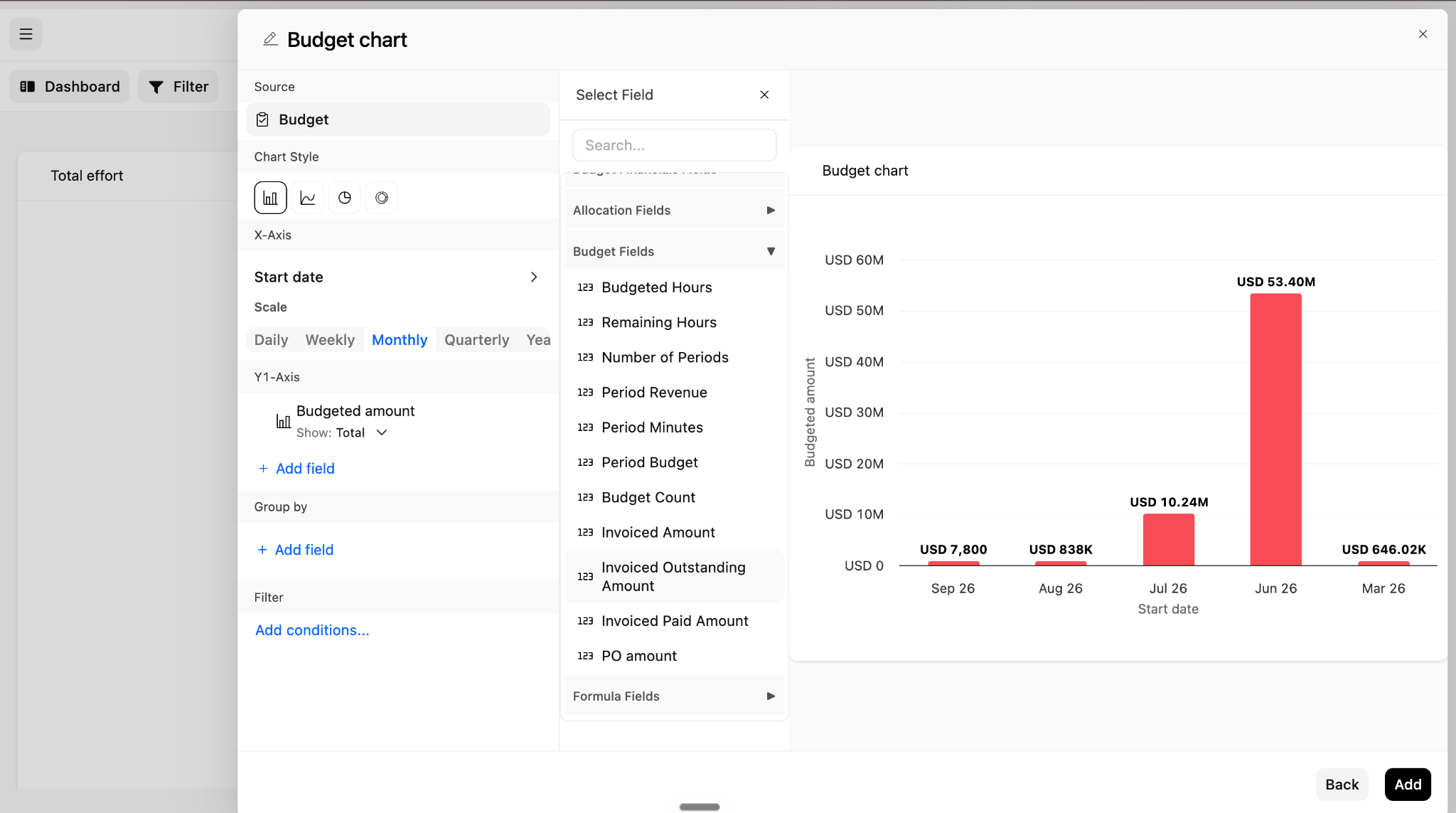
For example, dashboard widgets can be configured to:
- Compare budgeted amounts.
- Group budgets by status.
- Filter using budget fields.
- Display metrics across individual budgets.
For more information about budget reporting, see Analyze Multi-Budget Performance in Reports.
Changes to Time Tracking
After Multi-Budget is enabled, each time entry is associated with a specific budget instead of only with the project.
Default-Budget Fallback
If someone logs time without choosing a budget, Rocketlane assigns the time entry to the project's default budget.
This fallback applies to time logged:
- In the Rocketlane app.
- Through the API.
Invalid Budget References
A time entry cannot use a budget belonging to another project. If an API request, integration, or import references a budget from a different project, Rocketlane rejects the time entry instead of moving it to the default budget.
For the complete time-entry workflow, see Time Tracking with Multi-Budgets.
Budget Membership
Your account can restrict people to logging time only against budgets they belong to. When this restriction is enabled, project membership does not automatically grant access to every budget.
A person may therefore be able to open a project but be unable to log time against a budget until they are added as a budget member.
Rate Overrides
Rate overrides use different scopes:
| Override | Scope |
|---|---|
| Bill rate override | Budget |
| Cost rate override | Project |
This means one project can use different bill rate overrides across its budgets while continuing to use project-level cost rate overrides.
Changes to Resource Management
Resource allocation becomes budget-aware when Multi-Budget is enabled. Depending on the workflow, allocations or resource requests may be associated with a specific budget.
- Creating an allocation for a Multi-Budget project.
- Choosing or changing the associated budget.
- Submitting a resource request.
- Assigning a team to a project or budget.
- Reviewing budgeted and allocated hours in reports.
Changes to Expenses
A budget is required when creating or editing an expense after Multi-Budget is enabled. The expense cannot be saved until a budget is selected.
Budget fields also become available for grouping and filtering on:
- My expenses
- Expense approvals
Changes to Invoices
Multi-Budget changes invoice creation from a project-level workflow to a project-and-budget workflow.
The invoice wizard includes the following steps:
| Step | What happens |
|---|---|
| 1. Invoice details | Select the customer. Invoice data does not load until a customer is selected |
| 2. Select projects & budgets | Select projects and the budgets to include from each project |
| 3. Select uninvoiced work | Choose the date range and how uninvoiced work should be grouped |
| 4. Modify line items | Review and edit the line items created for each selected budget |
| 5. Additional information | Add notes and attachments |
| 6. Preview | Review the completed invoice before saving |
When Multi-Budget is disabled, the second step is labelled Select projects. When Multi-Budget is enabled, it becomes Select projects & budgets.
Selecting Projects and Budgets
One invoice can include budgets from several projects.
Each selected budget creates its own group of line items. A project with several selected budgets can therefore contribute several separate groups to one invoice.
Non-Billable budgets are excluded from invoice creation and do not appear in the project and budget selection list.
Deselecting all budgets under a project removes that project from the invoice. Rocketlane does not display an error when this happens.
Modifying Line Items
Every selected budget must contain at least one line item with a description. If any selected budget contains only line items with empty descriptions, you cannot continue from Modify line items.
The invoice can display a budget-by-budget breakdown in addition to project totals. This budget breakdown can be shown or hidden on the customer-facing invoice.
Select Uninvoiced Work
The Select uninvoiced work step is skipped only when:
- Every selected budget uses Fixed Fee billing.
- Expenses are disabled.
If Expenses are enabled, the step appears even when every selected budget is Fixed Fee.
Taxes and Billing Events
Taxes continue to apply at the invoice or line-item level. There is no budget-level tax setting.
A billing event can target one budget. A single billing event cannot apply to several budgets.
For the complete workflow, see Invoices for Multi-Budget Projects in Rocketlane.
Changes to Credit Notes
Credit notes use existing invoice line items and do not follow the invoice project-and-budget selection workflow.
Budgets appear as a grouping level between the project and its invoice line items. Select the line items that should be credited.
For the complete workflow, see Credit Notes for Multi-Budget Projects in Rocketlane.
Changes to Revenue Recognition
Revenue recognition entries can reference a specific budget. After Multi-Budget is enabled, recognized revenue is tracked at the budget level within the project instead of only at the project level.
See Managing the Revenue Recognition Ledger in Rocketlane for instructions on reviewing and managing these entries.
Changes to Integrations
Integration mappings that previously used project-level financial values may need to point to a specific budget after Multi-Budget is enabled.
HubSpot field mapping can map a property to a project's financial budget rather than only to the overall project.
Review integrations that synchronize fields such as:
- Billing Type
- Budget amount
- Budgeted Hours
- Currency
- Rate card
- Revenue Recognition Type
- Subscription period values
For supported synchronization scenarios and configuration steps, see How to Sync Integrations with Multi-Budgets.
Changes to Automations
Automations that read project financial fields can continue to use aggregated project-level values. However, project financial fields become read-only after Multi-Budget is enabled, and automations that attempt to update them will stop working.
Before migration:
- Review automations that reference Billing Type, budget amount, budgeted hours, or other financial fields.
- Identify any automation that updates those fields.
- Replace the project-level update with an appropriate budget-level workflow where supported.
- Test each affected automation against a Multi-Budget project.
Changes to Team Assignment
Team-assignment workflows can use budget information after Multi-Budget is enabled.
Test the following where applicable:
- Assigning a team to a project with several budgets.
- Confirming whether team members are added to the entire project or a specific budget.
- Checking whether budget membership affects time-entry permissions.
FAQ
Can I disable Multi-Budget after enabling it?
No. Enabling Multi-Budget is a one-way account change coordinated with Rocketlane.
Does Billing Type become a multi-select field?
The field remains single-select when you configure a budget. However, filters and reports can treat Billing Type as multi-select because one project may contain budgets with different billing types.
Does enabling Multi-Budget affect projects that only use one budget?
A project with one budget behaves similarly to a single-budget project. However, account-wide field definitions, filters, reports, integrations, and other budget-aware workflows can still change after Multi-Budget is enabled.
What happens if I deselect every budget under a project while creating an invoice?
The project is removed from the invoice. Rocketlane does not display an error when this happens.
Why can't I continue from Modify line items?
Every selected budget must contain at least one line item with a description. Review the line items under each selected budget and add any missing descriptions.
Does Multi-Budget automatically add Budget as a Custom Report source?
Budget can be enabled separately for tabular and pivot reports. Confirm which report types have the Budget source enabled for your account.
Will budget-related fields appear if Multi-Budget is not enabled?
No. Budget-specific tabs, filters, columns, and field behavior are available only after Multi-Budget is enabled.
Do project members automatically become members of every budget?
Not necessarily. If your account restricts time tracking by budget membership, a project member must also belong to the relevant budget before logging time against it.
What happens if no budget is selected when time is logged?
Rocketlane assigns the time entry to the project's default budget. This applies in the app and through the API.
What happens if a time entry references a budget from another project?
Rocketlane rejects the time entry instead of reassigning it to the default budget.
Do existing integrations continue working without changes?
Some may, but you should review every mapping that uses a project financial field. After migration, the intended value may be an aggregated project total or a value from a specific budget.
Summary
- Financial values such as Billing Type, budget amount, hours, rate cards, and revenue recognition settings move from the project level to the budget level.
- Project-level subscription and period fields are removed. The Current period fields do not have budget-level replacements.
- Budget information is viewed through Financials and Budgets, while budgets are created and edited under Settings > Budget management.
- Billing Type remains single-select when editing a budget but can become multi-select in filters and reports.
- Custom Reports and dashboards can use Budget as a source, while Profitability, Utilization, and Time Analytics become budget-aware.
- Time entries use the project's default budget when no budget is selected and reject budgets belonging to another project.
- Expenses require a budget.
- Invoices can include budgets from several projects, and each selected budget creates its own line-item group.
- Existing filters, reports, integrations, and automations that use financial fields should be reviewed and retested.
- Multi-Budget is a one-way account change, so validate your workflows on a test project before rollout.