Resource Management in Rocketlane helps plan and schedule team capacity across projects. Allocations can be managed directly from the timeline, including scheduling work across weekends, splitting allocation blocks, marking allocations as billable or non-billable, and adjusting the timeline view for short-term or long-term planning.
Allocations can also be configured while raising a new team member resource request. The timeline view in the request flow helps define exact date ranges and daily hours so the request reflects the true staffing need.
In this article
- When to use
- How overlapping allocations work
- Manage and edit allocations
- Split an allocation
- Create an allocation that includes weekends
- Create a new team member request using timeline allocations
- Weekend allocations and auto-allocated projects
- Allocation custom fields
- Track allocations against tasks or phases
- Mark allocations as billable or non-billable
- Allocated hours in tasks and reporting
- Show custom fields on the allocation bar
- Adjust the timeline view
- Reporting and calculation impact
- Capacity planning behavior
- Saved views in Capacity Planning
When to use
Use these allocation capabilities when there is a need to:
- Add hours only for part of an existing allocation window (for example, add 2 hours per day for only one week without changing the first week)
- Keep allocations as separate blocks so different allocation metadata can be tracked (custom fields)
- Include Saturday or Sunday work and reflect it in utilization calculations
- Link manual allocations to a task or phase for better traceability
- Keep planned non-billable work separate from billable work in budget, revenue, and utilization numbers
- Display allocation metadata (start time, end time, time zone, custom fields) directly on the allocation bar
- Switch between day-level detail and month-level planning in the timeline
- Raise a new team member request with precise date ranges and daily hours using timeline allocations
How overlapping allocations work
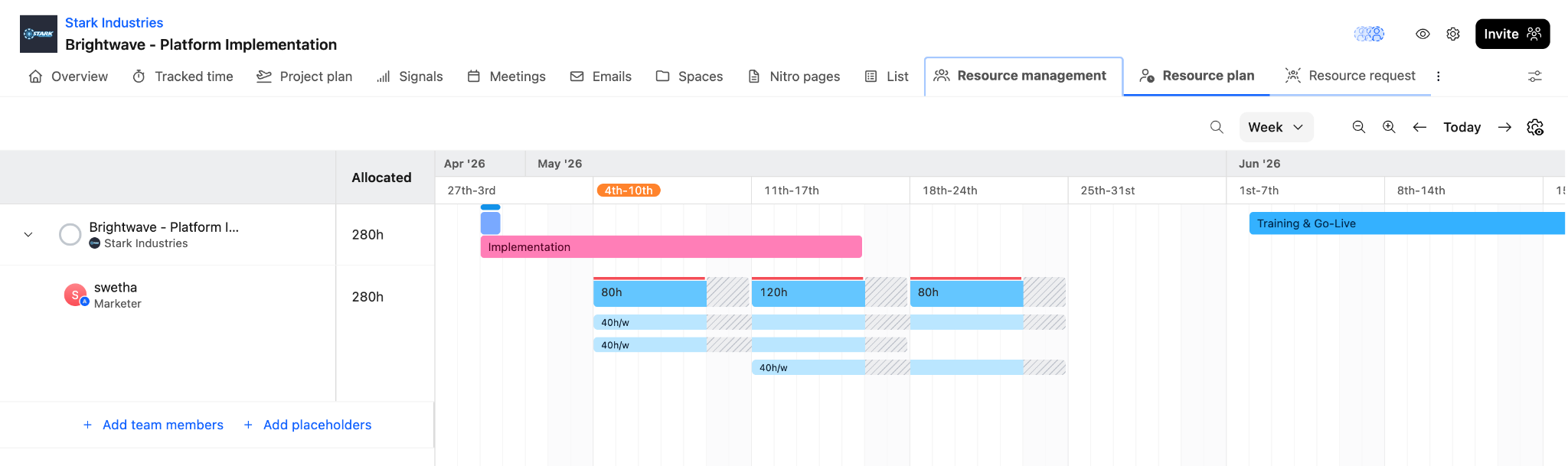
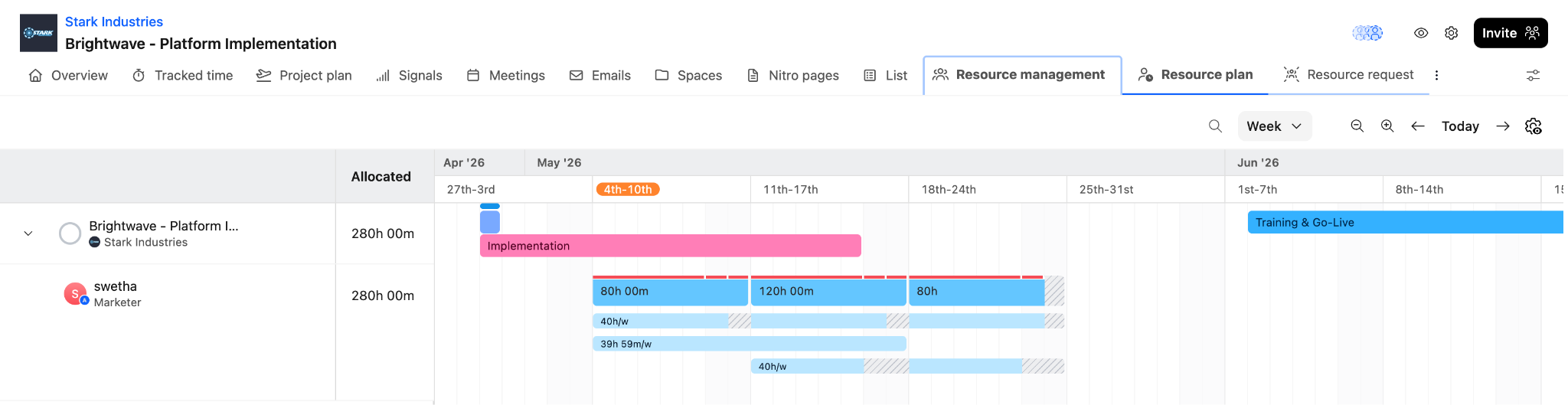
Rocketlane supports overlapping allocations by introducing an aggregate layer.
Aggregate layer vs individual allocations
- The aggregate layer shows the total allocation for a given time period.
- Under the aggregate layer, Rocketlane stores one or more individual allocation blocks that contribute to the total.
- Expanding the aggregate block shows each underlying allocation separately.
This allows adding new allocations for part of a date range without editing or rewriting the earlier allocation.
Example
If there is an allocation for:
- 8 hours per day for two weeks
and an overlapping allocation is added for:
- 2 hours per day for only the second week
Rocketlane:
- keeps both allocations as separate blocks
- updates the aggregate total only for the overlapping window
Resulting totals:
- Week 1 remains 40 hours (8h/day across weekdays)
- Week 2 becomes 50 hours (8h/day + 2h/day)
If another allocation overlaps again, Rocketlane automatically splits the aggregate windows so totals are accurate for each segment.
Manage and edit allocations
Allocations can be modified to adjust dates, update allocated time, or remove the allocation entirely.
Edit an allocation
- Navigate to the Resource Management module and select your project or person, or access the Resource Management tab directly from within the specific project view.
- Click the allocation block within the timeline to open the allocation drawer.
- To change dates:
- Click the date range button.
- Update the start date or end date.
- Click Done.
- To update allocated time, enter a new value in the allocation field (for example,
1h 30m). - To change whether the allocation is billable, select or clear Billable?. For details, see Mark allocations as billable or non-billable.
- Click Done to save changes.
Delete an allocation
- Click the allocation block to open the drawer.
- Click the Delete (trash can) icon.
Split an allocation
If a team member is required for different hours across different periods, a continuous allocation can be split into separate segments. Each segment can then be edited independently.
- Click an existing continuous allocation block in the timeline (for example, an
8h/dblock). - Hover over the allocation block to reveal the split icon (a small divider line).
- Click the splitter icon to divide the block into two segments.
- Click each segment to edit it independently, such as updating allocated hours for only that segment. For example, one segment can have 6h while the other can have 10h.
- Click Done to save changes.
The aggregate layer and overlapping allocation behavior is consistent across:
- People page allocations
- Project-level Resource Management allocations
- Resource Requests (including timeline view)
Create an allocation that includes weekends
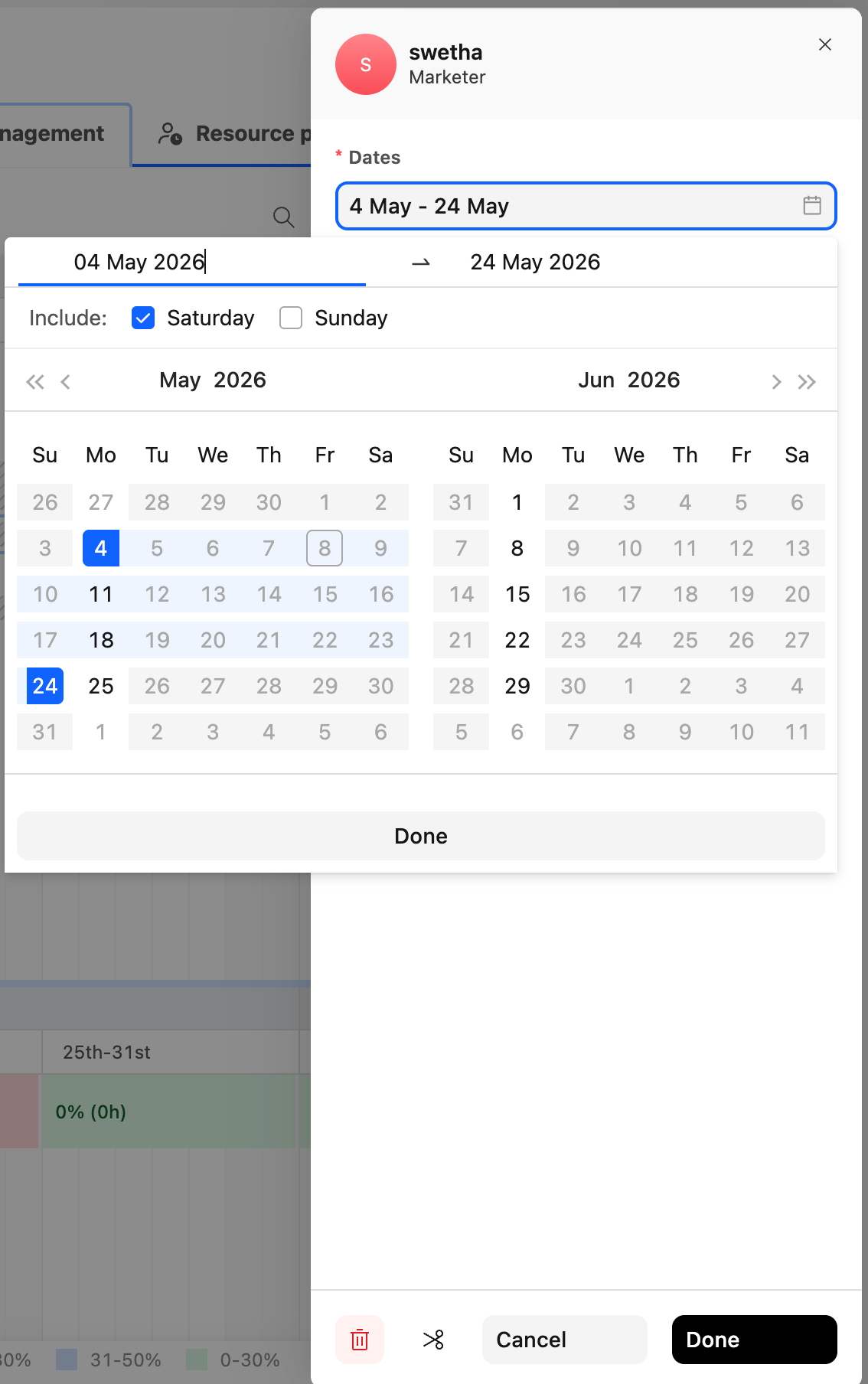
By default, Rocketlane calculates allocations for weekdays (Monday through Friday). If work is required on Saturday or Sunday, weekends must be explicitly included when creating a new allocation.
- Navigate to the timeline and click an empty cell for the required team member and project.
- In the allocation drawer, click the date range button.
- Select the start and end dates from the calendar pop-up.
- Click Include weekend to reveal weekend checkboxes.
- Select the checkbox for:
- Saturday
- Sunday
- Saturday and Sunday
- Click Done in the calendar pop-up to apply the date selection.
- Review the updated total days. The total now includes Saturday and Sunday, along with the total calculated allocation based on hours per day.
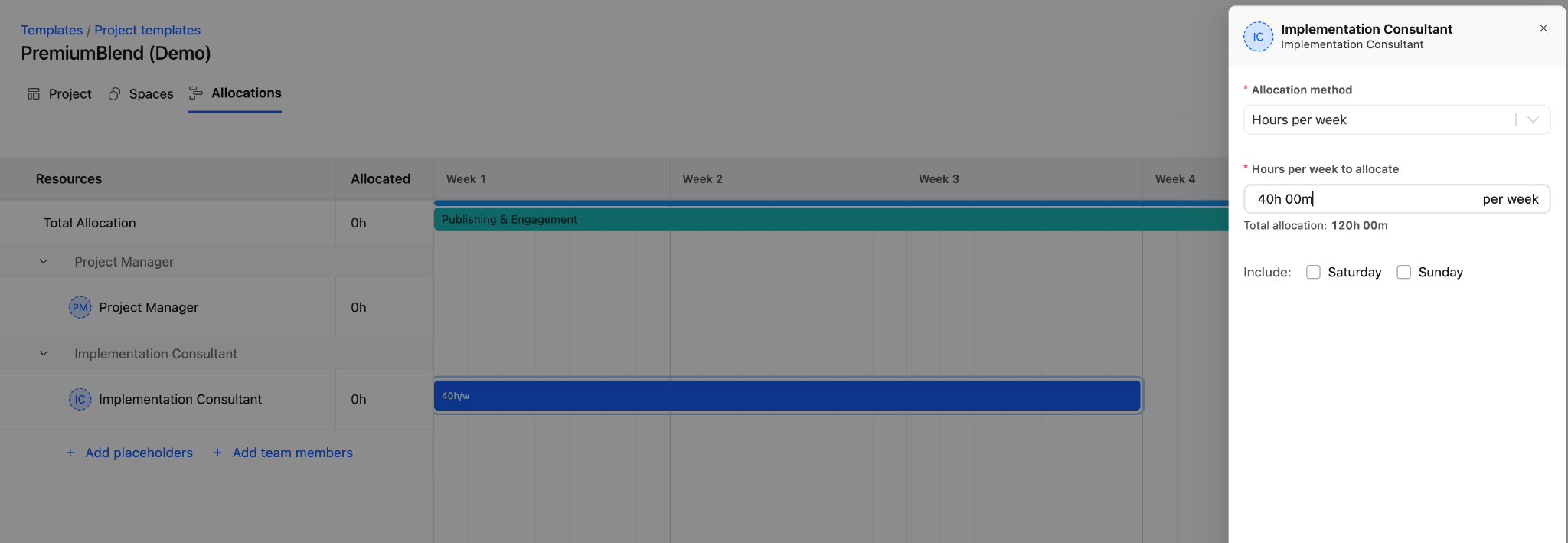
These same actions can be performed within a project template by assigning allocations to placeholders or users.
Create a new team member request using timeline allocations
When creating a new team member request, the timeline view helps allocate resources precisely by setting date ranges and defining daily hours. This ensures the project receives the right resources with the required skill sets at the right time.
Create a resource request with timeline allocations
- Navigate to the Apps menu in the top navigation bar.
- Select the Resource requests card.
- Click New request (top-right) and select New team member.
- In the request form:
- Open the project dropdown and select the target project.
- Click the date picker to define the overall duration of the request (start and end date), then click Done.
- Select the required role or department from the team dropdown.
- Click Switch to timeline to open a calendar-based timeline view of the request allocation.
Manage allocations on the request timeline
Edit an existing allocation block
- Click the allocation block in the timeline grid.
- In the details panel:
- Adjust the date range for that block.
- Update the required daily hours.
- Click Done to save.
Add a new allocation block
- Click the + icon on the timeline.
- Set the date range and enter daily hours for the new block.
- Click Done.
Submit the request
- Review the timeline and confirm the allocation blocks are accurate.
- Click Request at the bottom of the form to submit the new team member request.
Weekend allocations and auto-allocated projects
Auto-allocated projects already support multiple overlapping task allocations, so overlapping behavior does not change. Weekend scheduling is configured at the task allocation level.
Include weekend at the task level
- The toggle Include weekend is available in task-level allocation.
- Weekend inclusion can be configured per assignee.
- Example: one person can be scheduled on Saturday while another is not, within the same task.
- When weekend work is enabled on tasks, the resulting allocations reflect weekend inclusion across project-level views.
Allocation custom fields
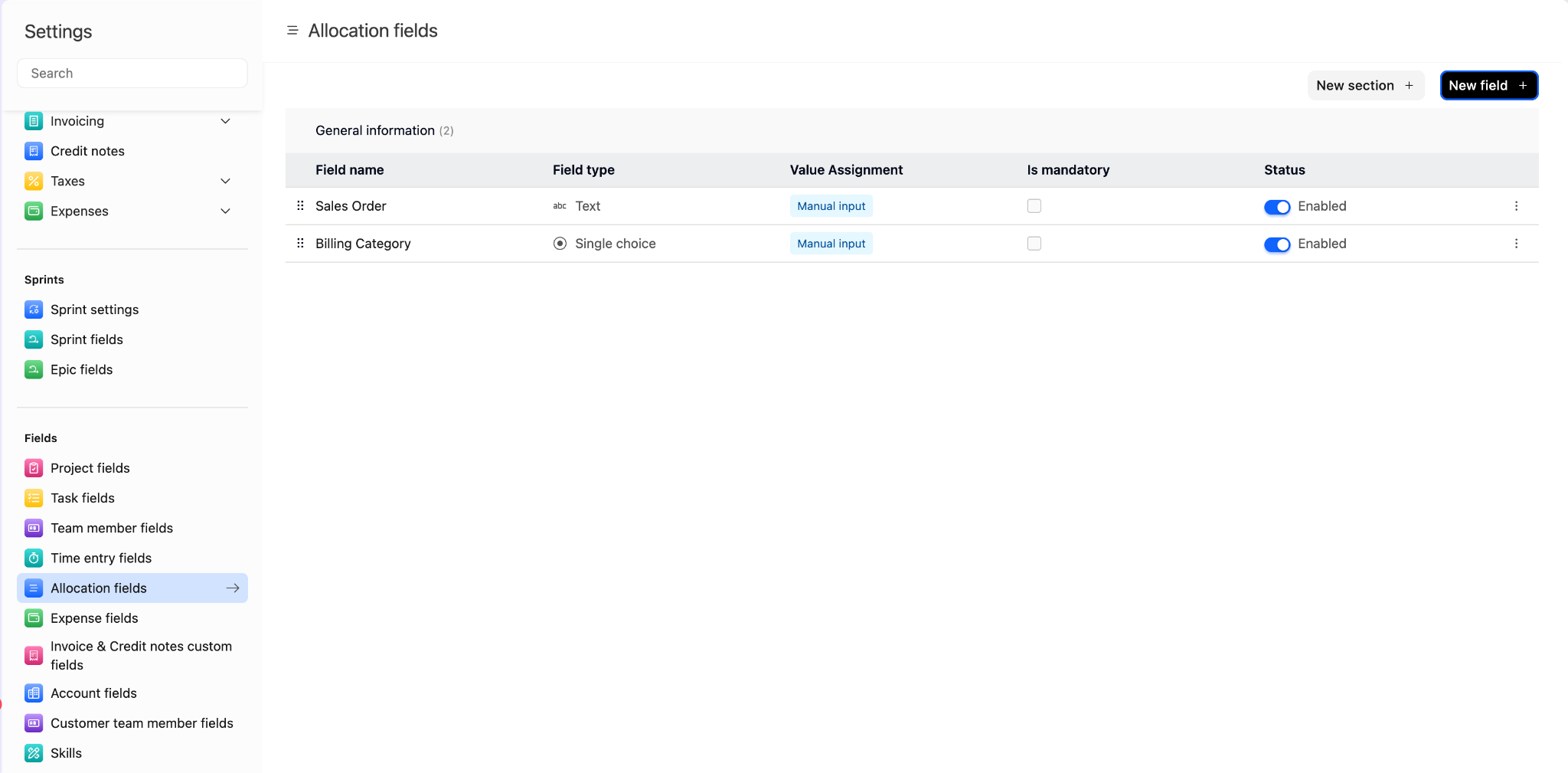
Rocketlane supports allocation-level custom fields, similar to other objects. These fields can be used to capture additional metadata on allocations and support better reporting and governance.
To define new allocation fields, navigate to Settings → Allocation Fields and click New Field.
Allocation field types
Similar to time entry custom fields, allocation fields support two types:
- Manual Input: values are entered directly when creating or editing an allocation.
- Inherited Fields: values are automatically pulled from related objects:
- Task
- Project
- User
- Company
- A fallback value can be configured in case the source field is empty.
Mandatory allocation fields
Admins can mark allocation fields as required.
- For manual allocations, required fields must be filled when updating the allocation.
- For Auto-allocate, allocations are created even if mandatory fields are unfilled. In this case, required fields must be updated after allocations are created.
Allocation field permissions
Similar to time entry fields, allocation fields can be organized into sections with granular permissions:
- Configure view and edit access per user group.
- Use sections to ensure sensitive allocation metadata is visible only to the intended users.
Track allocations against tasks or phases
Manual allocations can be tracked against specific tasks or phases in a project. This improves traceability when staffing is planned manually but reporting is expected at the work-item level.
Enable tracking
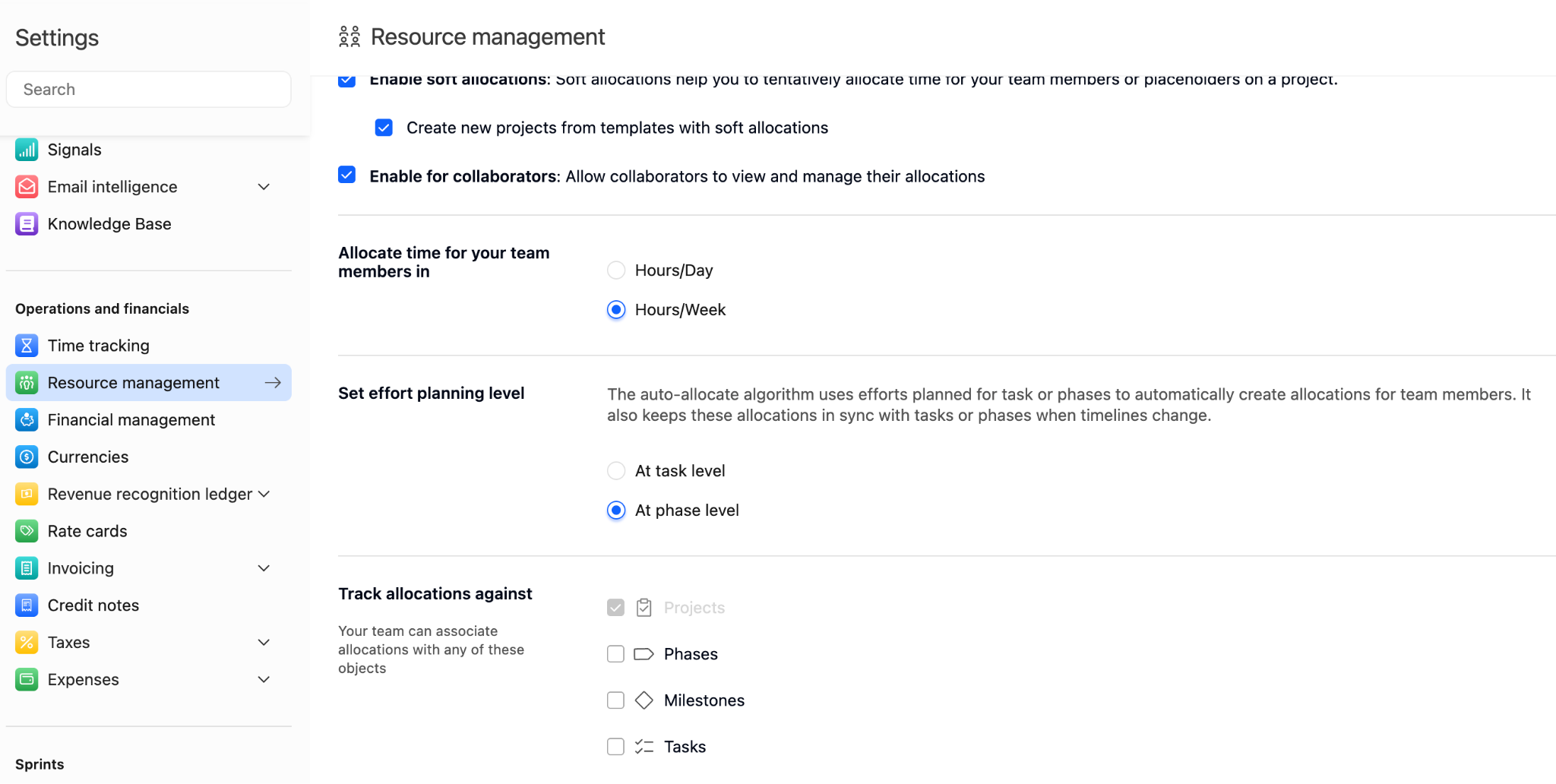
- Go to Settings → Operations & Financials → Resource Management.
- Enable Track Allocations Against.
Select what allocations track against
By default:
- Project is selected if Multi-line budget is disabled.
- Budget is selected if Multi-line budget is enabled.
To track allocations against work items, select Task or Phase. Once selected, a Work dropdown appears in:
- the allocation drawer (timeline allocation editor)
- the resource request form
This dropdown allows linking each allocation to a task or phase. For auto-allocated tasks, the Work value is populated automatically.
Mark allocations as billable or non-billable
Teams often staff people on work that the customer won't pay for, such as internal reviews, rework, or goodwill hours. When those hours are planned as billable, remaining budget, EAC, revenue forecasts, and billable utilization look better than they will turn out. The Billable? setting on each allocation keeps planned billable and non-billable hours separate.
Set billable status on an allocation
- Open the Resource Management timeline from the Projects or People tab, or from the Resource management tab inside a project.
- Click an empty cell to create an allocation, or click an existing allocation block to edit it.
- In the allocation drawer, find the Billable? checkbox next to the hours field.
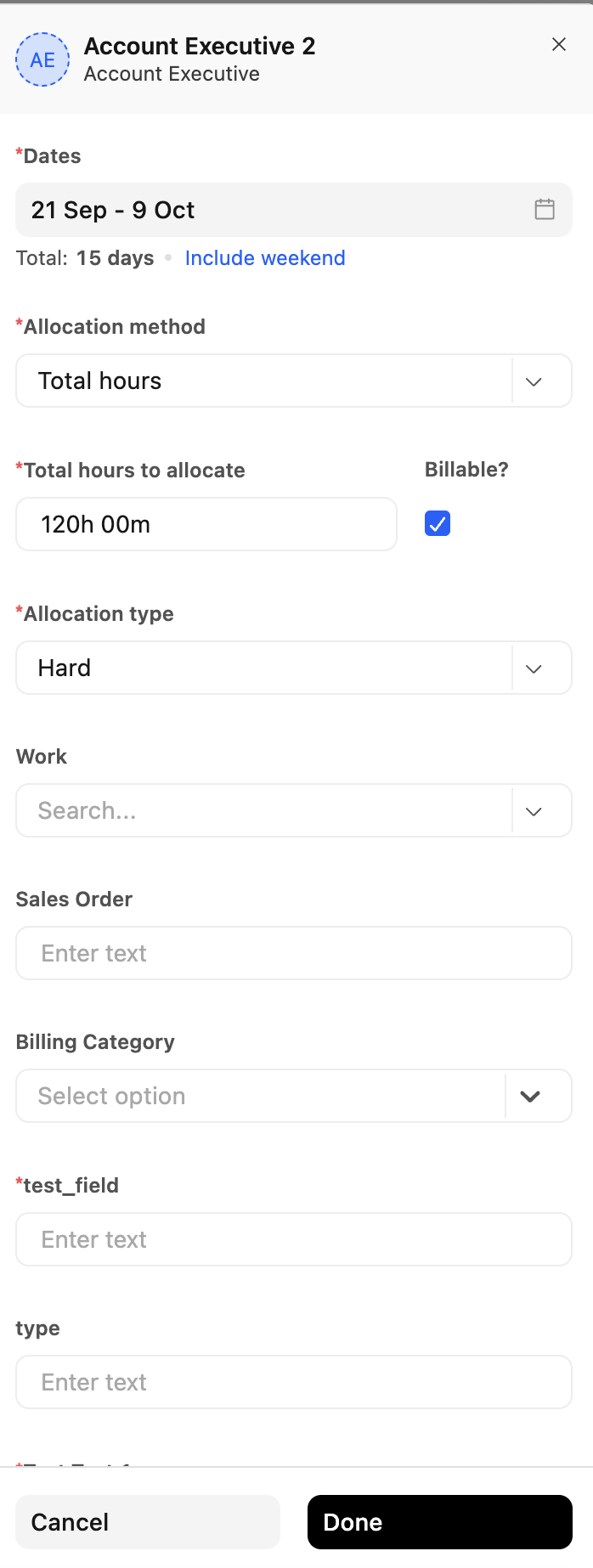
- Select the checkbox for billable work, or clear it for non-billable work.
- If allocations are tracked against tasks, select the task in Work. If the task's billable setting differs from the current value, the Confirm billable settingdialog opens:
- Click Yes, proceed to apply the task's setting to the allocation.
- Click No, don't apply to keep the current value.
- Click Done to save.
How the default value is set
| Situation | Default for Billable? | Can it be changed? |
|---|---|---|
| New allocation on a billable budget (Time and Material, Fixed Fee, Subscription) | Selected (billable) | Yes |
| Allocation on a Non billable budget | Cleared (non-billable) | No, the checkbox is disabled |
| Task selected in Work | The task's billable setting under Time entry and allocation settings, after you confirm | Yes |
| Phase or project selected in Work | Unchanged | Yes |
| Auto-allocated task allocation | The task's billable setting | No, the checkbox is disabled |
| Auto-allocated phase allocation | Selected (billable), unless the budget is Non billable | No |
Identify non-billable allocations on the timeline
- Non-billable allocation bars show an NB tag.

- Hovering over an allocation shows Billable or Non-billable in the tooltip.
- On a project's Resource management tab, hovering over the Allocated column shows the total allocated hours, split into Billable hours and Non-billable hours, along with Remaining hours.
How billable status affects financials and utilization
| Area | Effect of non-billable allocations |
|---|---|
| Remaining budget, ETC, EAC, and revenue | Excluded when the Timesheets Non-billable hours setting is turned on for the project's contract type. The setting reads "All non-billable time entries and non-billable allocation will not be considered in calculations for remaining budget, EAC and Revenue". |
| Planned billable utilization | Excluded. Only billable allocated hours count. |
| Planned utilization | Included. All allocated hours count. |
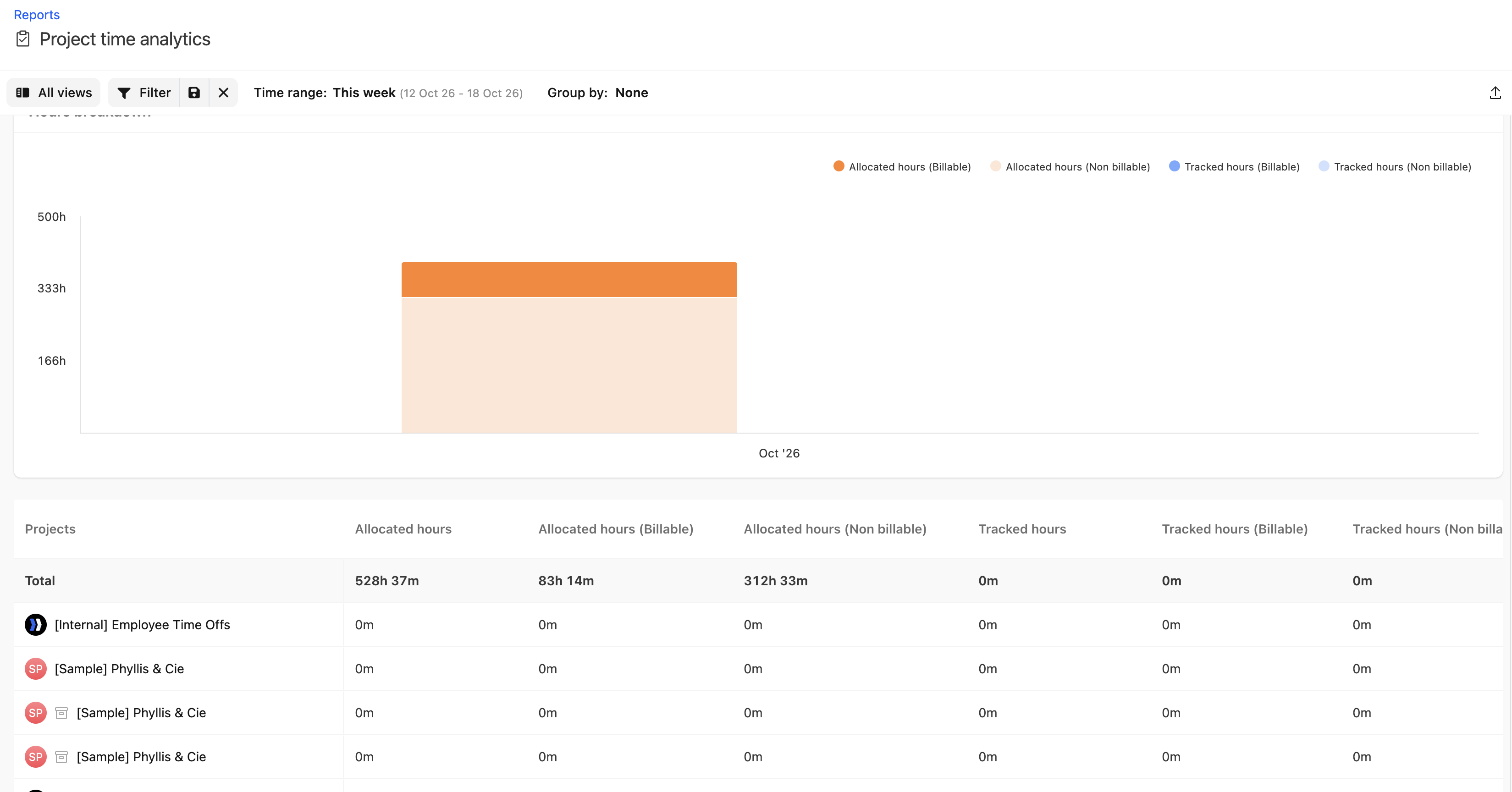
| Project Financials, Projects list, Time analytics, and Custom Reports | Shown separately as Allocated hours (Billable) and non-billable allocated hours. |
Billable status in templates
Billable status can also be set on allocations in a project template. Projects created from the template, or projects that import it, keep each allocation's billable status. If the new project uses a Non billable budget, all allocations are created as non-billable.
Allocated hours in tasks and reporting
Allocated Hours appears across task views and reporting so task-level allocation analysis is easier. This includes:
- An Allocated Hours column in the All Tasks list
- Allocated Hours as a filter option in All Tasks advanced filters
- Allocated Hours included in the All Tasks export
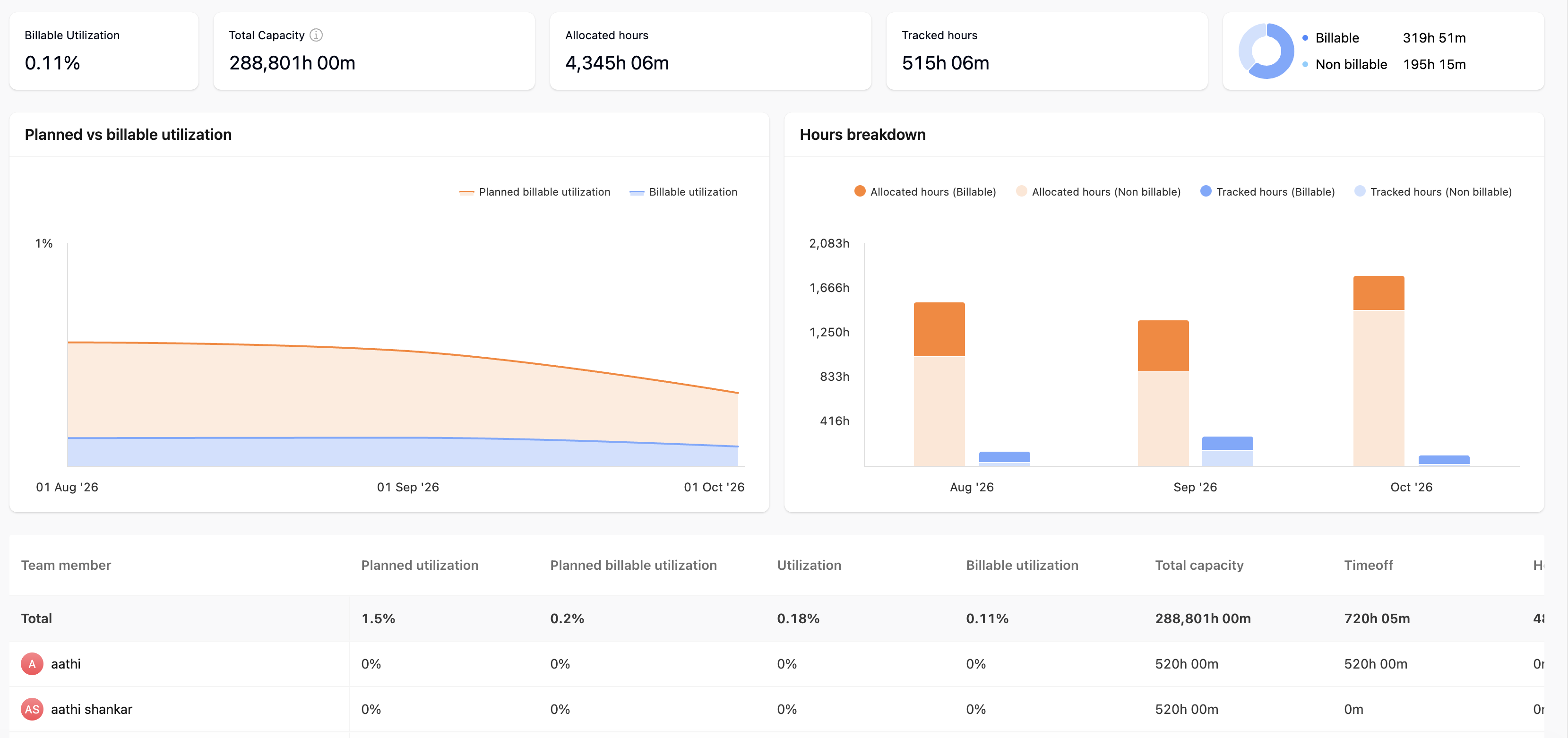
- Allocated Hours under the Tasks source in Custom Reports
- Allocated Hours under Hours details in the Project Financials tab, split into Allocated hours (Billable) and non-billable allocated hours
Show custom fields on the allocation bar
Selected allocation fields can be displayed directly on the allocation bar to surface key context without opening the drawer. Common examples include:
- start time
- end time
- time zone
- allocation custom fields configured by the workspace
Once configured, the field value appears inside the allocation bar on the timeline.
Adjust the timeline view
Timeline zoom controls help switch between detailed and high-level planning views.
- Use Zoom in and Zoom out in the timeline toolbar to change the view.
- Zoom in for a detailed day view.
- Zoom out for a broader month view.
This supports both short-term scheduling and long-term capacity planning.
Reporting and calculation impact
Utilization and allocated hours can change
Because allocations can include weekends:
- total allocated hours can increase relative to weekday-only assumptions
- utilization calculations can change because weekend work contributes to allocated totals
Without weekend inclusion, allocation views assume Monday to Friday. With weekend inclusion:
- Saturday and Sunday allocations contribute to allocation totals
- variance calculations can change because the working-day assumption expands when weekends are included
Capacity planning behavior
Weekend visibility also carries into capacity planning views:
- weekends appear in capacity planning timelines
- weekend days are included where allocation timelines are displayed
Capacity settings still follow the workspace capacity model:
- If capacity is tracked as hours per week, the week is treated as a 7-day unit and evaluated at weekly granularity.
- If capacity is tracked as hours per day, the per-day value is derived from weekly capacity and configured working days (for example, 40 hours across 5 working days becomes 8 hours per day).
Saved views in Capacity Planning
Saved views are available in the Capacity Planning page, similar to the Projects and People tabs in Resource Management. Saved views allow saving frequently used filter configurations so they can be reused without reapplying filters every time.
How saved views work
- Open the Capacity Planning page.
- Apply any combination of filters.
- Click Save View As.
- Enter a name for the view.
- Select who can access the view:
- Only me: private to the current user
- All team members: visible to everyone in the workspace
- Specific team members: visible only to selected users
- Save the view.
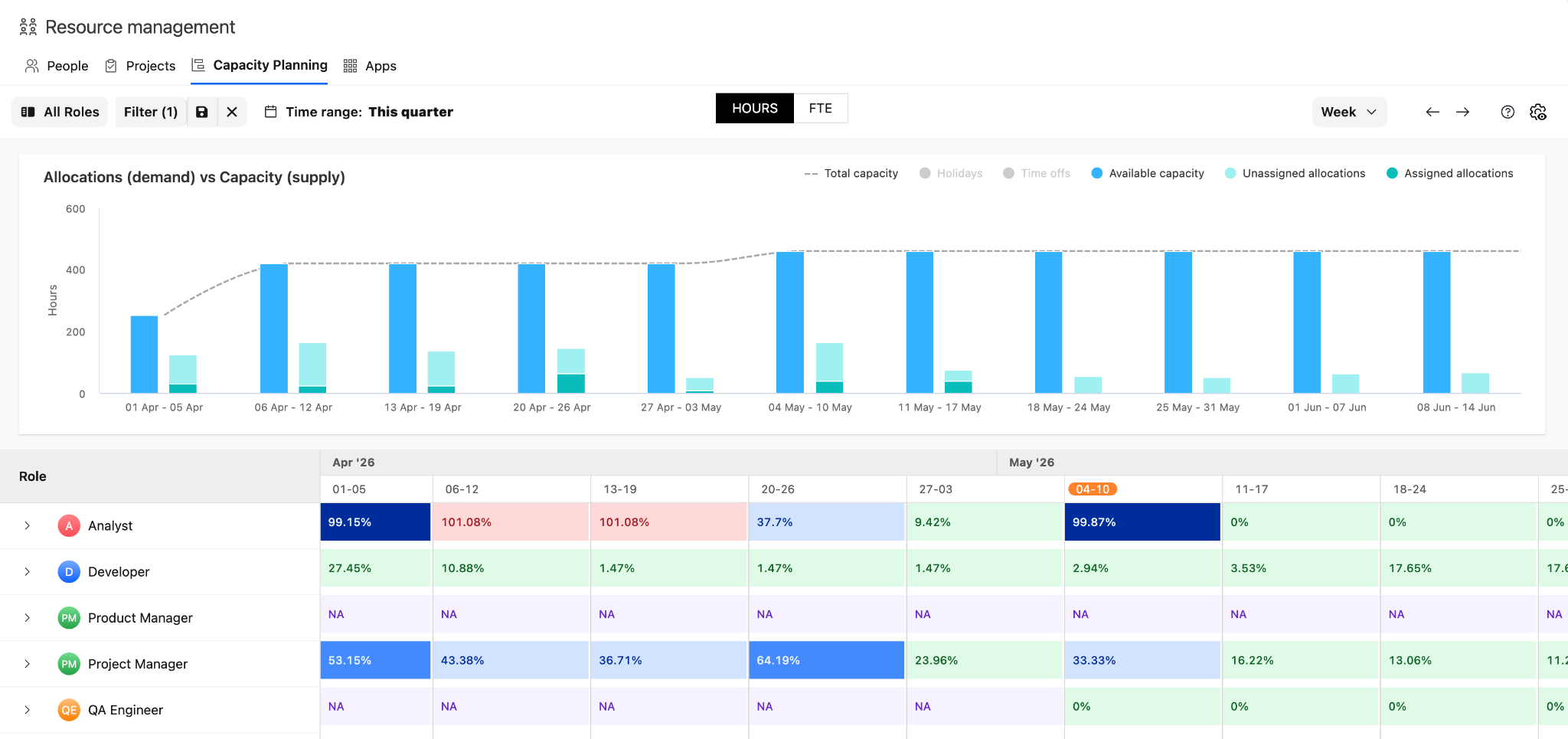
Saved views help teams return to commonly used planning configurations quickly. They also make it easier to share a consistent view across team members, which is useful for recurring capacity reviews and role-specific planning workflows.