In this article
Subtasks in Rocketlane allow you to micro-manage tasks and task assignments by breaking a parent task into smaller tasks.
Subtasks function as independent tasks with the same properties as a parent task and are constituted within a parent task.
How to Add a Subtask
- Go to Projects and select the project where you want to add a subtask.
- Go to the Project Plan, List, or Board View and select the task that you want to add the subtask to.

- From the Task pane, go to Subtasks and click Add task.

- You can add a new subtask by typing in a name for the subtask and pressing Enter.

- The subtask will be added to the list of subtasks.

Adding Multiple Subtasks
You can bulk add a list of subtasks from the parent task's Task Pane.
- Create a list of subtasks that you want to add to your project. Select the list and copy it to clipboard.

- Go to Projects and select the project where you want to add subtasks.
- Go to the Project Plan, List, or Board View and select the task that you want to add subtasks to.
- From the Task pane, go to Subtasks and click Add task.

- Paste the list of tasks you want to add.
- The subtask list will be added to the Subtasks section.

Managing Subtasks
Subtasks function like independent tasks with all the same fields as a parent task, but are embedded within a parent task.
To assign properties to a subtask and explore task functionalities, go to the project and click on the parent task.
From the Subtasks section in the Task pane, select the subtask.

Subtask functionalities are similar to task functionalities. To read more about the basics of a task, click here.

Advanced Status Automations for Subtasks
You can automate the status update for a task based on the status update of subtasks.
- Go to Settings > Advanced > Workflow Management. Under the Status Automation > Tasks section, you have the following options:
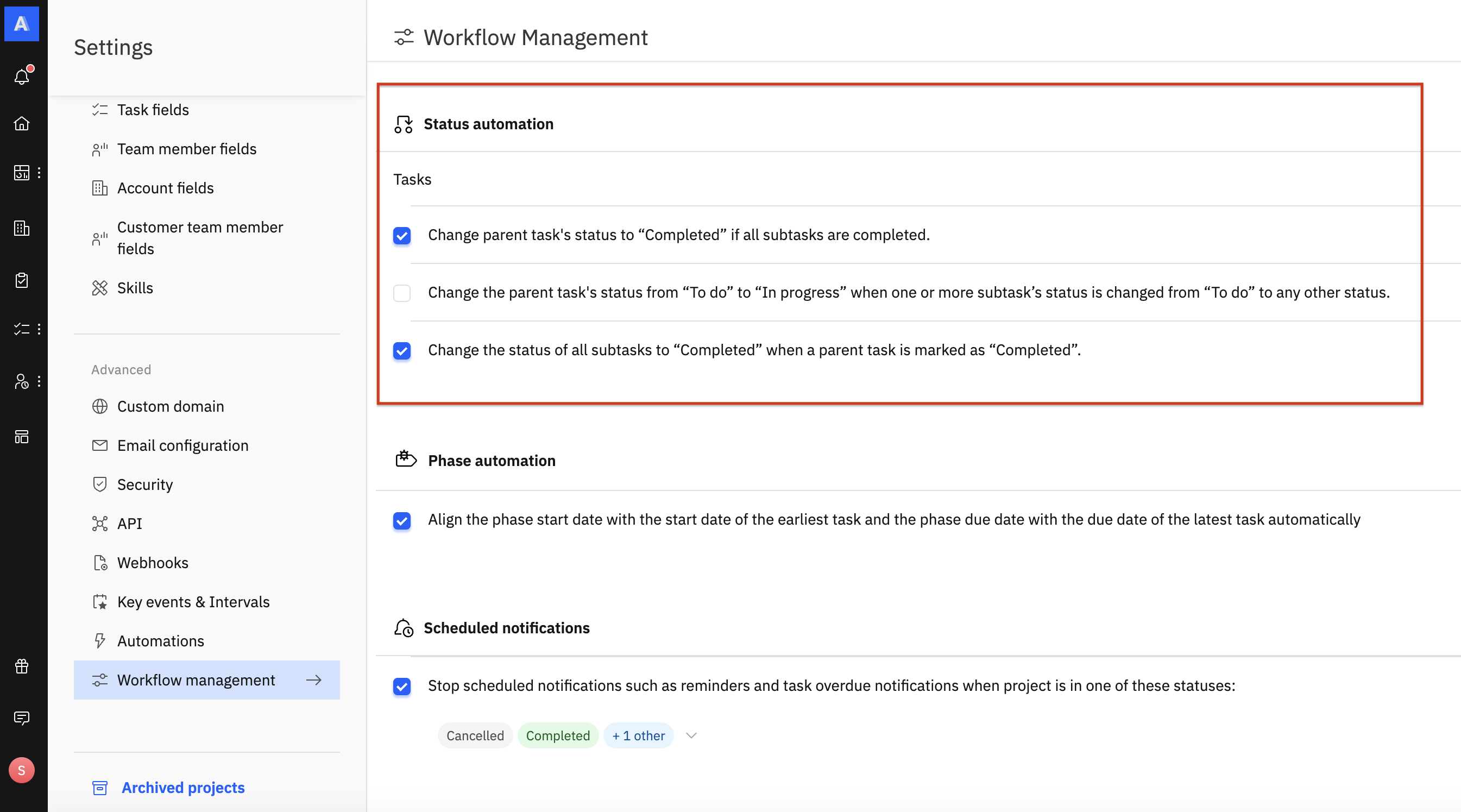
- Here, you can set up the following automations:
- Change the parent task's status to Completed if all subtasks are completed.
- Change the parent task's status from To do to In progress when one or more subtask’s status is changed from To do to any other status.
- Change the status of all subtasks to Completed when a parent task is marked as Completed.
- You can select multiple options by clicking on the checkbox next to it.